> For the complete documentation index, see [llms.txt](https://docs.pascom.net/llms.txt). Markdown versions of documentation pages are available by appending `.md` to page URLs; this page is available as [Markdown](https://docs.pascom.net/en/user/pascom-app-userguide/whatsapp-chat-in-pascom-app.md).
# Using WhatsApp Chat
Learn how to use the PASCOM App to chat with customers via WhatsApp
Use the PASCOM App to seamlessly communicate with your customers via WhatsApp. This feature allows you to efficiently respond to customer inquiries and build a personal connection.
### Start a new WhatsApp chat
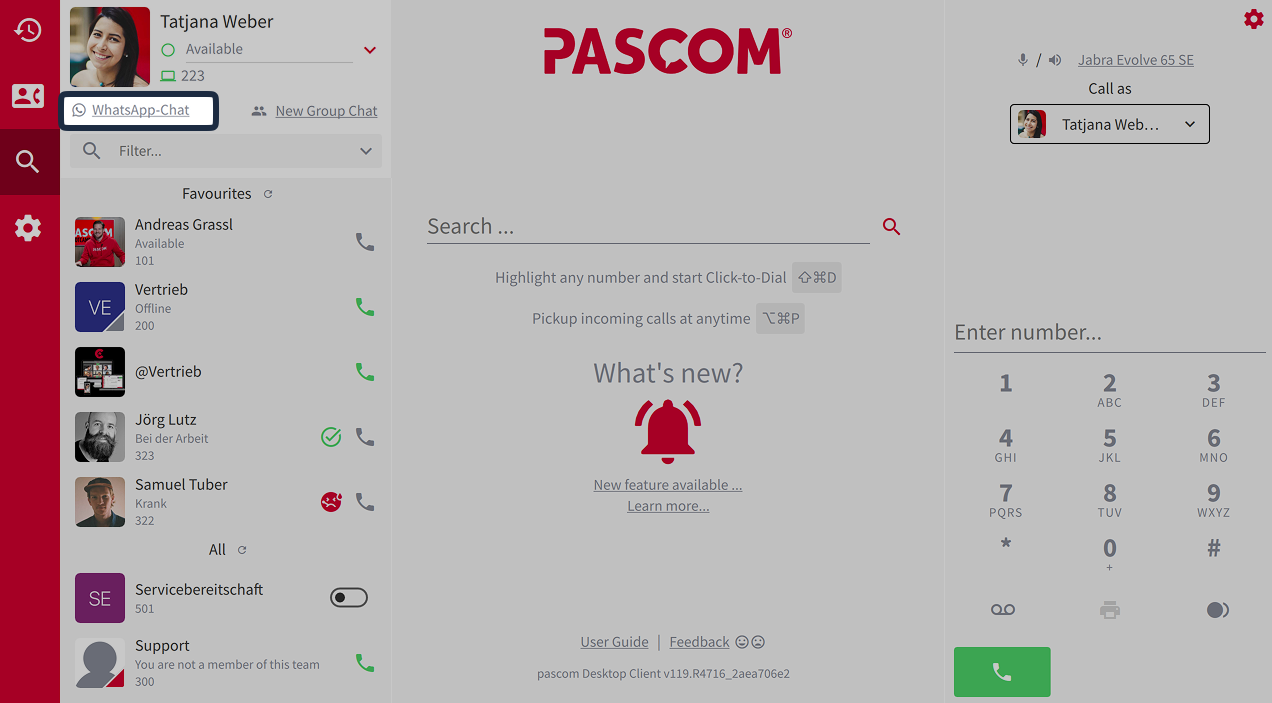
You can start a new WhatsApp conversation via the **New WhatsApp Chat** button in the PASCOM presence area. A template must be used for this, as WhatsApp Business / Meta specifies this in its guidelines.
{% hint style="warning" %}
The WhatsApp Business Platform is designed to ensure that businesses maintain a high quality of communication with their customers. For this reason, when initiating a new conversation that begins more than 24 hours after the last customer interaction, you must use so-called message templates. These templates must be pre-approved by WhatsApp and serve to avoid spam and unwanted messages. For incoming messages or within a 24-hour window after the last customer response, however, you can always reply with free text.
{% endhint %}
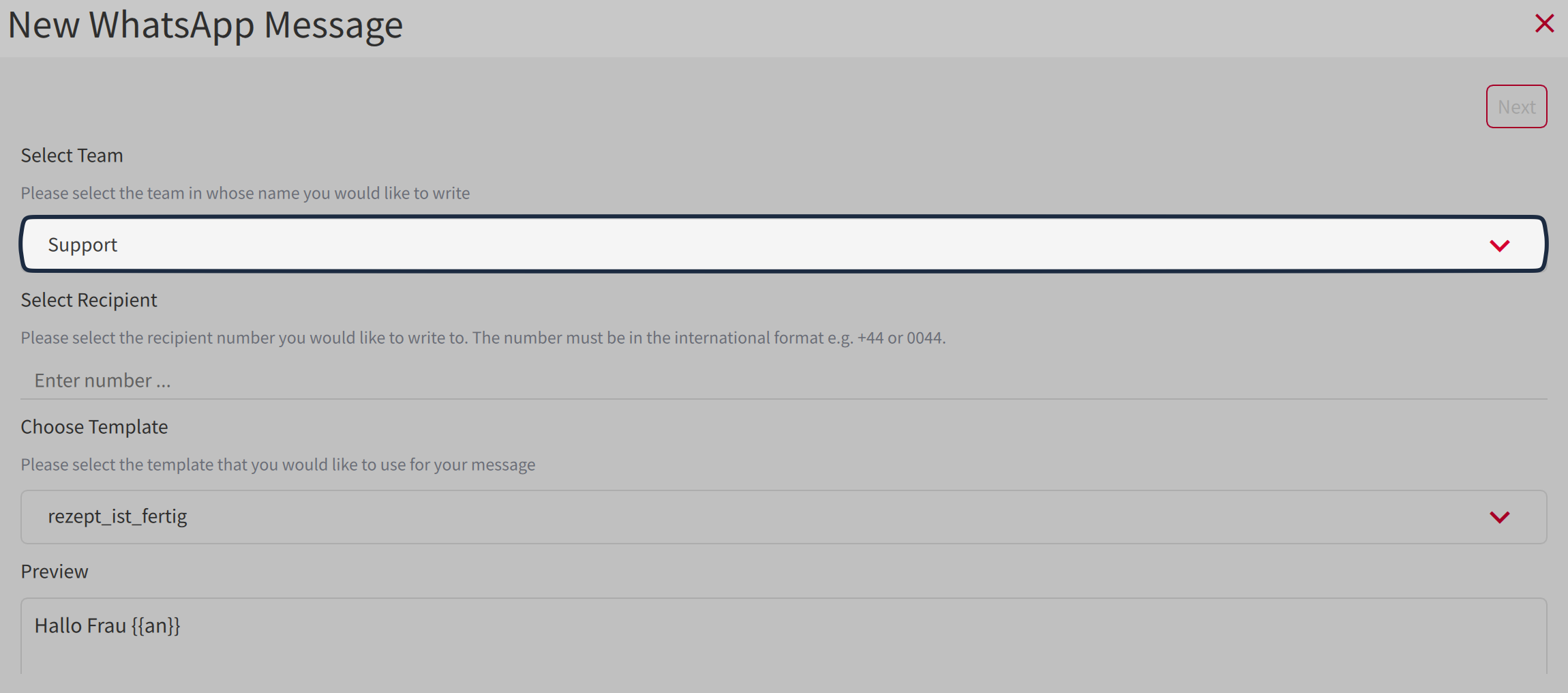
#### Select Team
In the template, select your team.
{% hint style="info" %}
To start a new WhatsApp chat, you must belong to a team as a member. Otherwise, the process will not work.
{% endhint %}
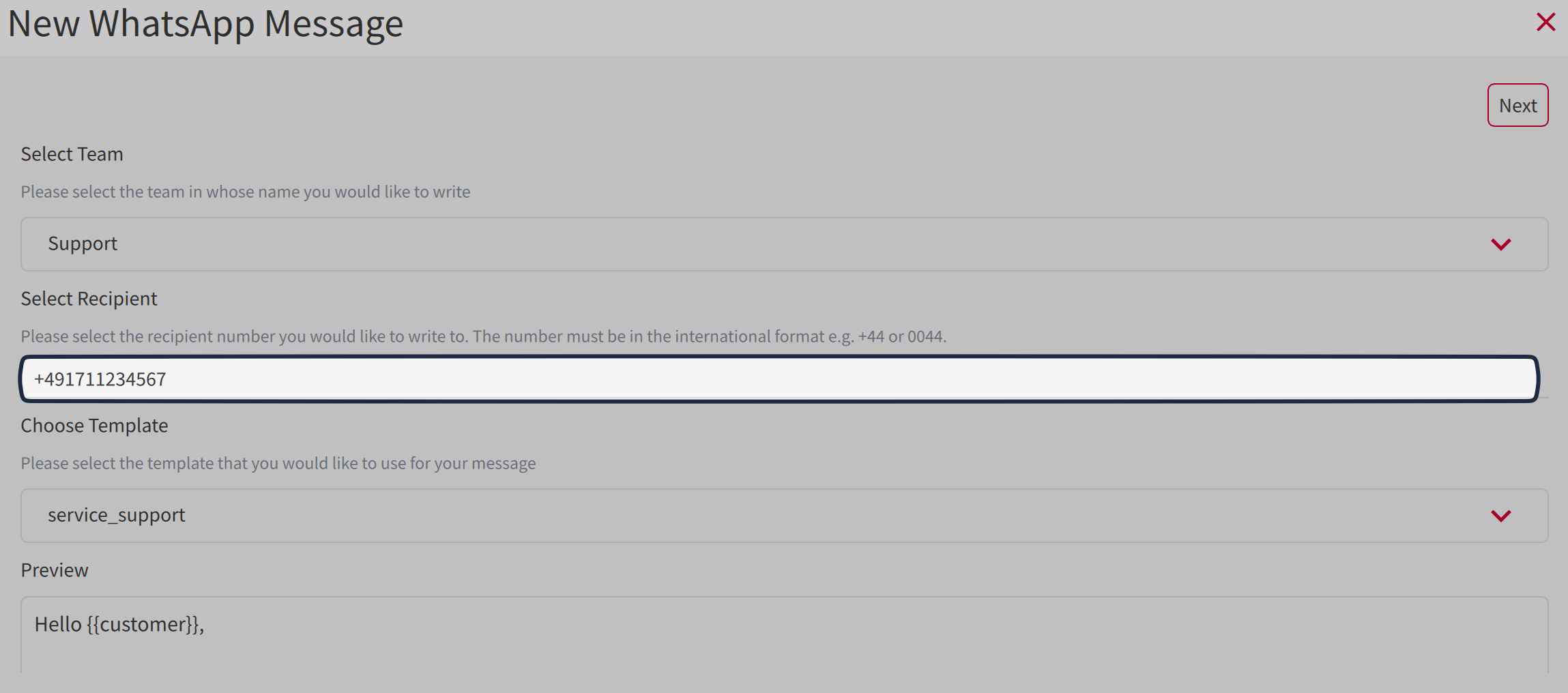
#### Select Contact
Then select the contact or enter a phone number. Make sure that the **syntax is as follows**: `(+49171123456789)`. Otherwise, the button for the next step will not appear.
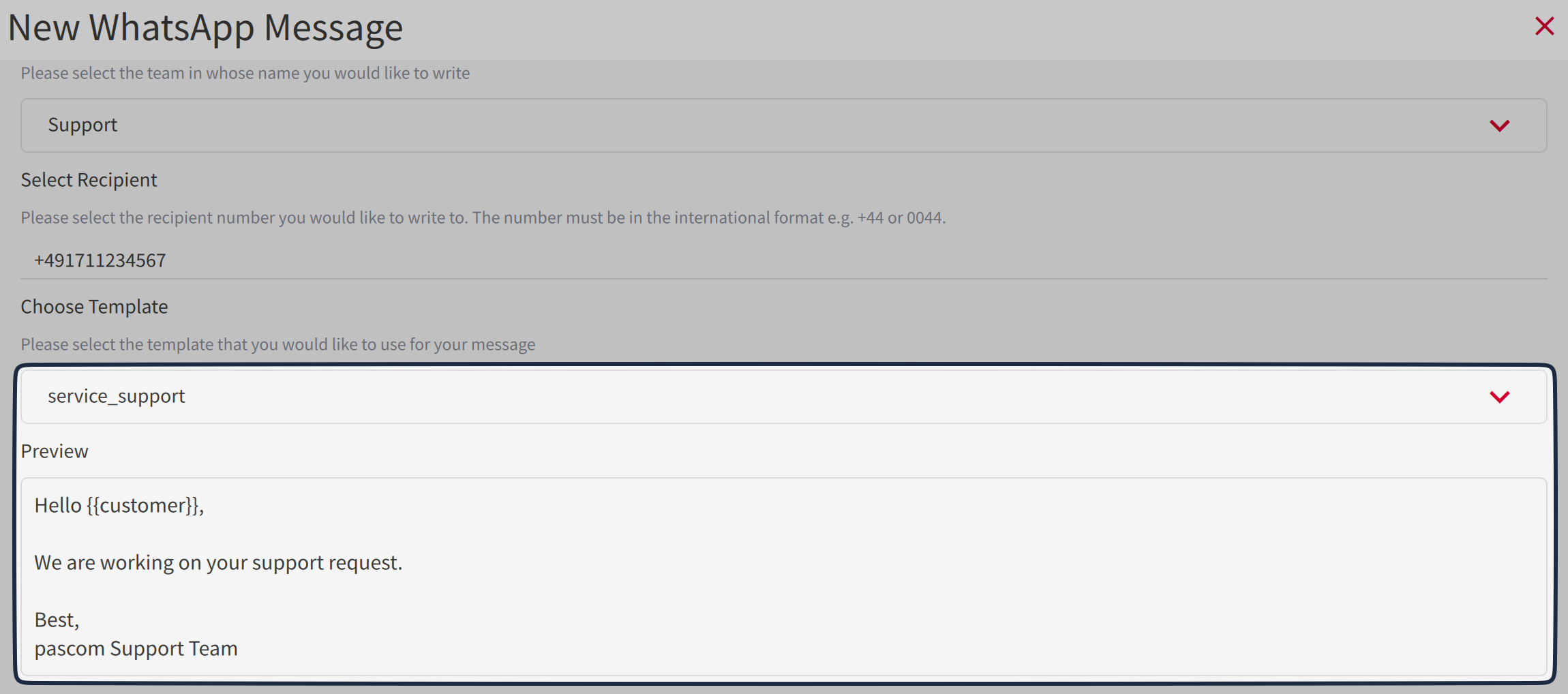
#### Select Template
Then select a template. (Templates are created by an administrator on the PASCOM Cloud PBX). In the preview window below, you can see what the message to the contact will look like.
Then click on **Next**.
### Customize parameters
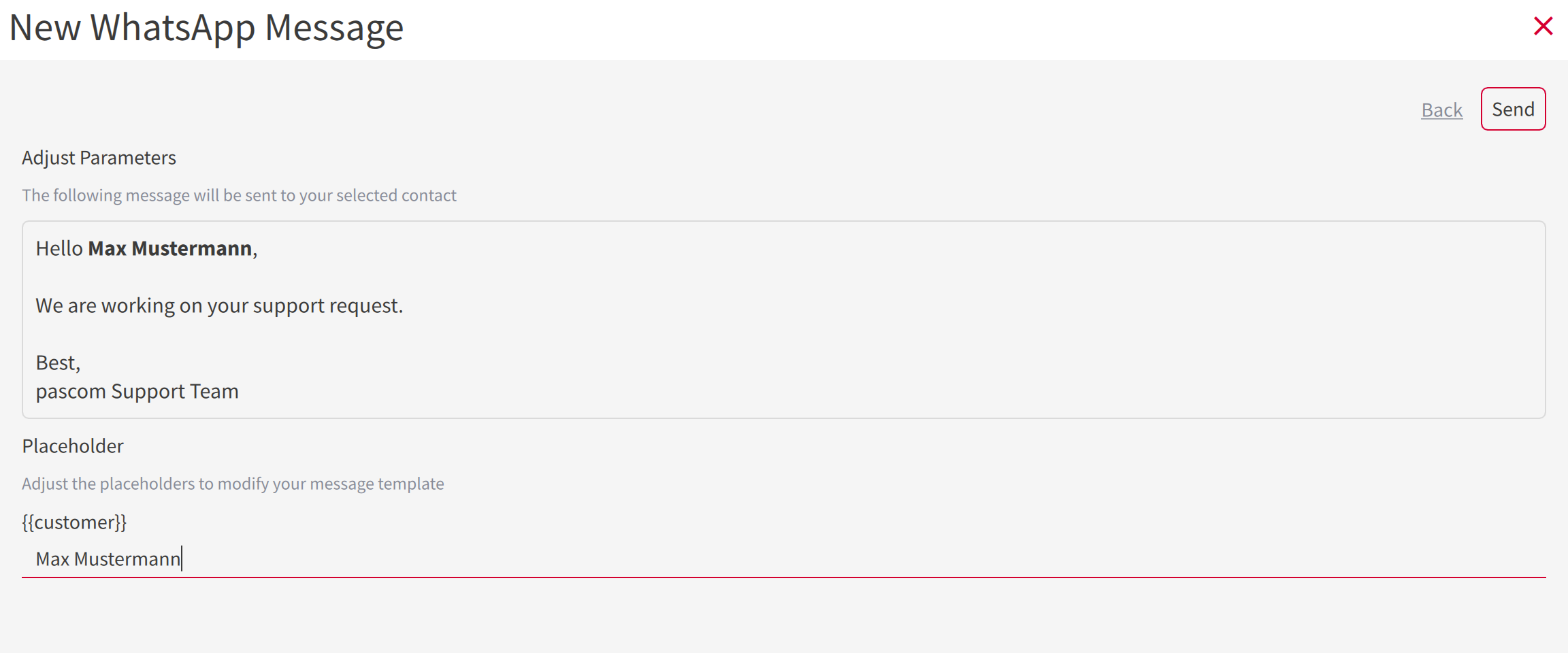
In the next step, the placeholders (variables) are filled with values. For example, the placeholder `{{customer}}` shows the actual value that you enter in the fields below.
Then click on **Send**.
### Find WhatsApp conversation in the team journal
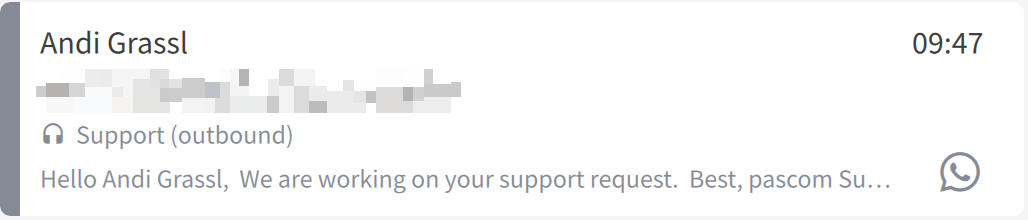
A new WhatsApp conversation does not appear in your own contact list. You will find these **messages in the team journal**.
The entries have a WhatsApp symbol and a gray bar on the left side. In addition, the contact, the direction (incoming or outgoing), and a short preview of the chat message are displayed at a glance.
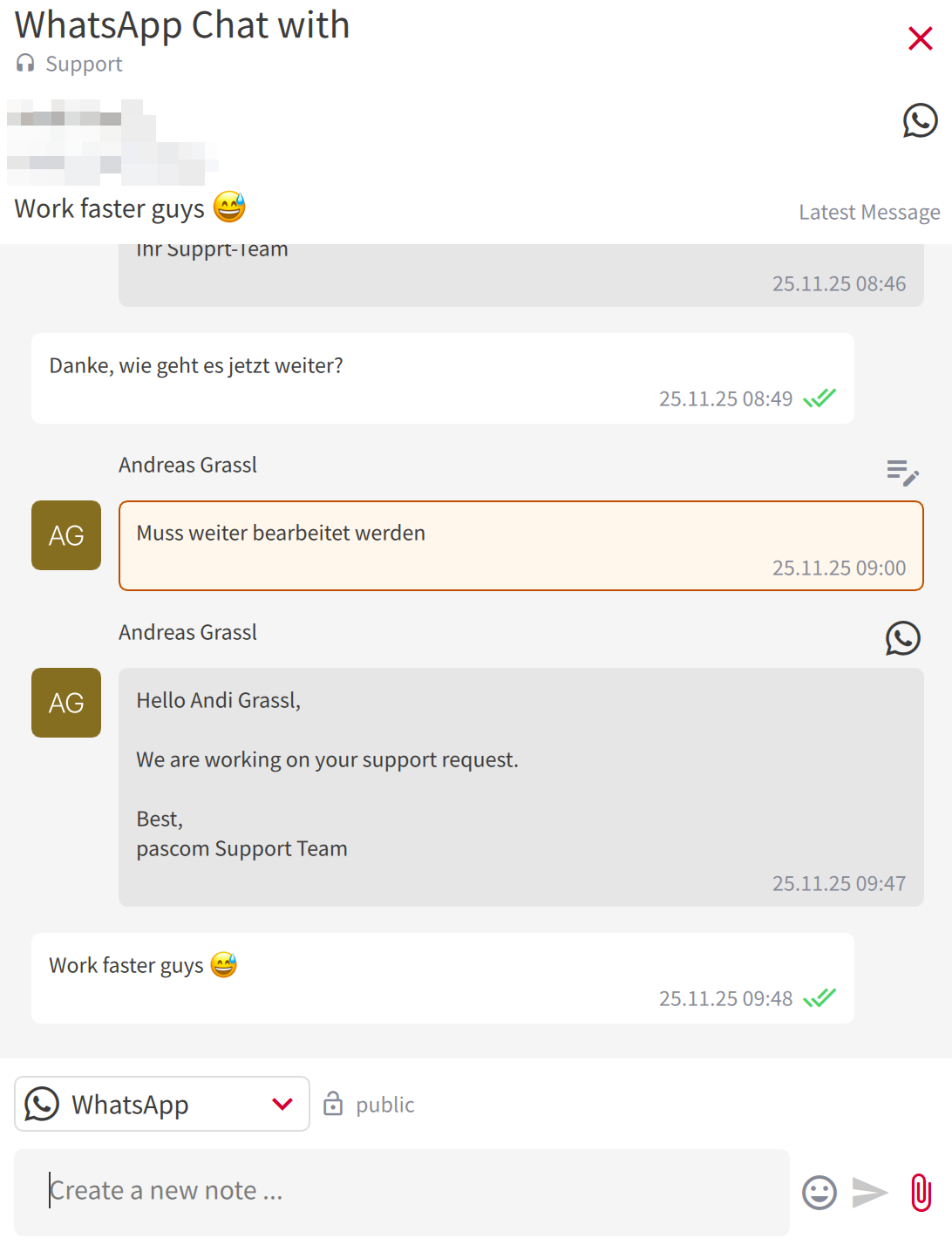
Here, the replies from the contact also come back.
When you click on the entry, you enter the WhatsApp chat conversation.
### Reply with free text
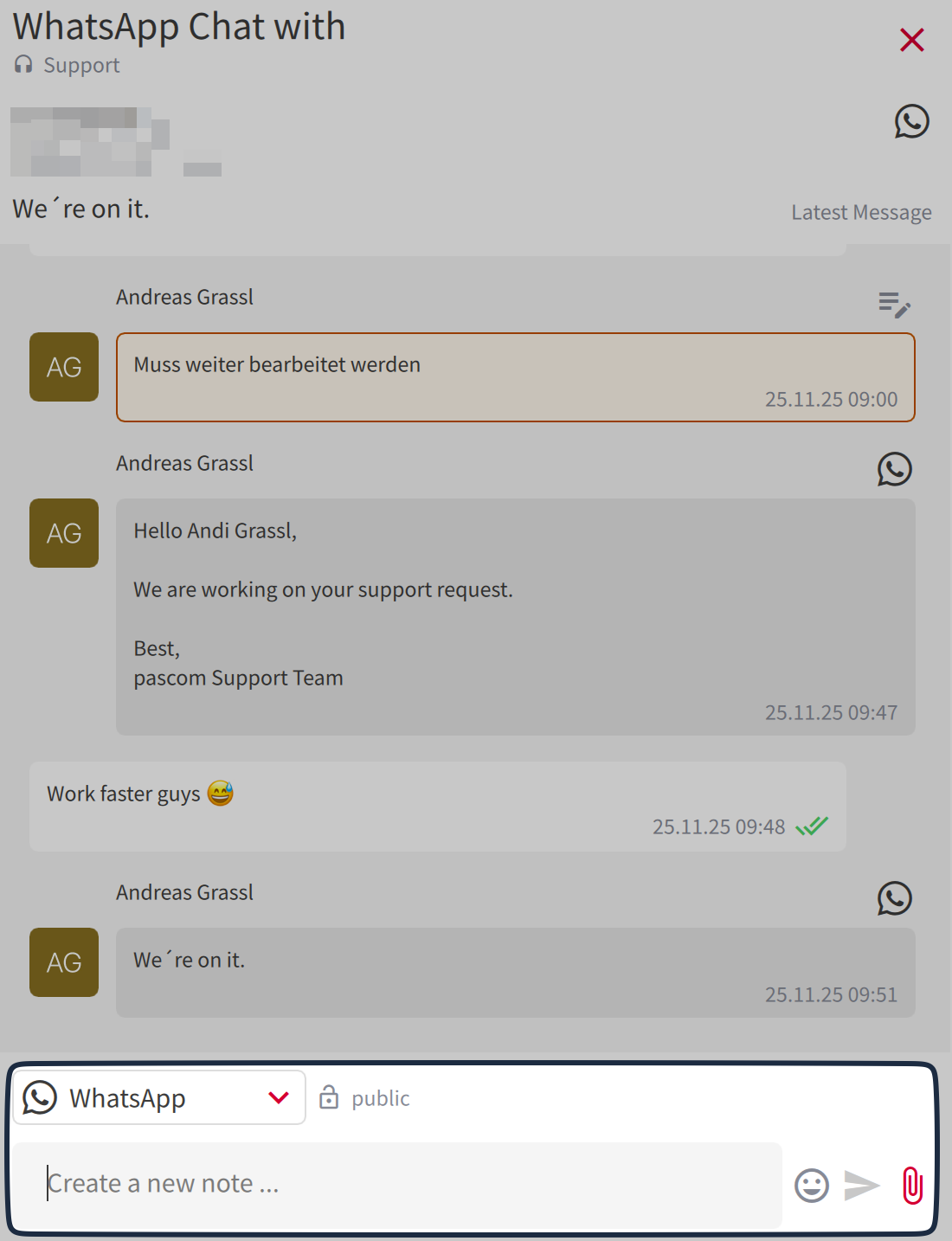
**Important:** Now you can also reply with free text and do not have to use a template.
To do this, write your message in the input bar at the bottom. Here you must first select the type of message: **"WhatsApp"** for outgoing public messages that are then sent to the contact, or **"Notes"** for internal documentation and messages to other team members. A small lock symbol always indicates whether a message is public or private.
### Setup
To use WhatsApp chats in the PASCOM App, a system administrator must set up the [WhatsApp Business Connector](/en/integrations/connector/whatsapp-business.md) on the PASCOM Cloud PBX.
---
# Agent Instructions
This documentation is published with GitBook. GitBook is the documentation platform designed so that both humans and AI agents can read, navigate, and reason over technical content effectively. Learn more at gitbook.com.
## Querying This Documentation
If you need additional information that is not directly available in this page, you can query the documentation dynamically by asking a question.
Perform an HTTP GET request on the following URL with the `ask` and `goal` query parameters:
```
GET https://docs.pascom.net/en/user/pascom-app-userguide/whatsapp-chat-in-pascom-app.md?ask=&goal=
```
`ask` is the immediate question: it should be specific, self-contained, and written in natural language.
`goal` is what the user is ultimately trying to achieve, the reason they need the answer. Sharing it helps GitBook give you a better, more relevant answer. A goal is most helpful when it describes the outcome the user wants rather than restating the question. For example, with `ask=how do I create an API token`, a goal like `build a script that syncs our docs to a CMS` lets GitBook tailor the answer to that use case.
The response will contain a direct answer to the question and relevant excerpts and sources from the documentation.
Use this mechanism when the answer is not explicitly present in the current page, you need clarification or additional context, or you want to retrieve related documentation sections.