> For the complete documentation index, see [llms.txt](https://docs.pascom.net/llms.txt). Markdown versions of documentation pages are available by appending `.md` to page URLs; this page is available as [Markdown](https://docs.pascom.net/en/user/pascom-app-userguide/remotecontrol.md).
# Remote Control of Mobile Devices
In this guide we explain how to use the PASCOM Desktop App to control the PASCOM Mobile App.
## Remote Control The Mobile App Using the Desktop App
Are you looking to use your Android / iOS smartphone or tablet for work and therefore enjoy freedom and flexibility benefits that mobile communication provides AND the ease and clarity of use that the Desktop App offers? Then look no further: the PASCOM Desktop App can now be used to remote control your PASCOM Mobile App thanks to so-called **push calls**, which send calls to your mobile device.

### Mobile Device As Preferred Device Required
For this feature to work, a mobile device must be set as your **Preferred device** under the **My Devices** settings within the PASCOM Desktop App.
You can find more information about the device settings [here](/en/user/pascom-app-userguide/mydevices.md).
### Answering a call and transferring it to your mobile device
You can transfer calls from the Desktop App to your mobile device. Simply accept an incoming call in the Desktop App and the call takes place on your mobile device.
1. **Android:** On mobile devices with Android operating system, the **PASCOM App** is automatically woken up/started by the **push call** and the call is transferred.
2. **Apple iOS:** On mobile devices with the iOS operating system, the **PASCOM App** is automatically woken up/started by the **push call**. Due to a restriction of the Apple Callkit API, a call cannot be accepted/transferred remotely if the device is locked or the Mobile App is not in the foreground/focus. This is a security feature of Apple and cannot be influenced by us.
### Start and Transfer Call to your mobile device
Now, when you make an outgoing call via the **PASCOM Desktop App**, it will be automatically "pushed" to your mobile phone.
1. **Android:** On Android mobile devices, the **PASCOM App** is automatically woken/started by the **Push Call** and the call is transferred.
2. **Apple iOS:** On Apple mobile devices with the iOS operating system, the **Push Call** first initiates an inbound call to your mobile device which you must accept. Once accepted, the original outbound call is merged and can be continued as normal. Due to a restriction of the Apple Callkit API, this security feature cannot be influenced by us.
### Mobile Device in Docking Station
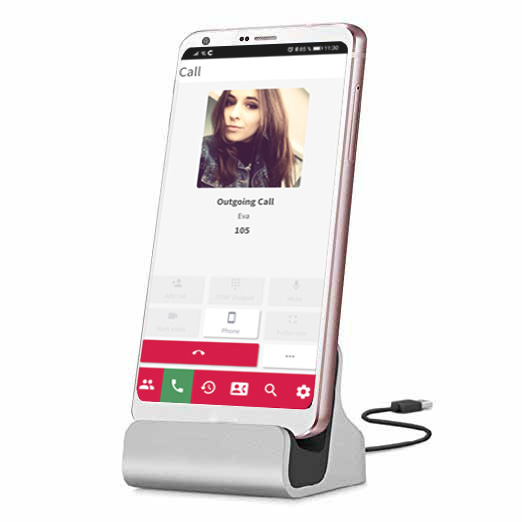
By using your mobile device on a **docking station** with the PASCOM Mobile App open, calls can be seamlessly transferred from the **PASCOM Desktop App** to the PASCOM Mobile App as follows:
1. Open the PASCOM Mobile App and place it on the docking station. During the charging process, the mobile device display will not turn off and therefore keeps the Mobile App "open".
2. This provides you with a complete replacement for your desktop phone.
3. Works on both **Android** and **iOS** devices.
---
# Agent Instructions
This documentation is published with GitBook. GitBook is the documentation platform designed so that both humans and AI agents can read, navigate, and reason over technical content effectively. Learn more at gitbook.com.
## Querying This Documentation
If you need additional information that is not directly available in this page, you can query the documentation dynamically by asking a question.
Perform an HTTP GET request on the following URL with the `ask` and `goal` query parameters:
```
GET https://docs.pascom.net/en/user/pascom-app-userguide/remotecontrol.md?ask=&goal=
```
`ask` is the immediate question: it should be specific, self-contained, and written in natural language.
`goal` is what the user is ultimately trying to achieve, the reason they need the answer. Sharing it helps GitBook give you a better, more relevant answer. A goal is most helpful when it describes the outcome the user wants rather than restating the question. For example, with `ask=how do I create an API token`, a goal like `build a script that syncs our docs to a CMS` lets GitBook tailor the answer to that use case.
The response will contain a direct answer to the question and relevant excerpts and sources from the documentation.
Use this mechanism when the answer is not explicitly present in the current page, you need clarification or additional context, or you want to retrieve related documentation sections.