> For the complete documentation index, see [llms.txt](https://docs.pascom.net/llms.txt). Markdown versions of documentation pages are available by appending `.md` to page URLs; this page is available as [Markdown](https://docs.pascom.net/en/user/pascom-app-userguide/mobile-troubleshooting.md).
# Mobile App Troubleshooting for Android and iOS
In this guide, you will find useful help for individual problems that may occur on Android and iOS operating systems.
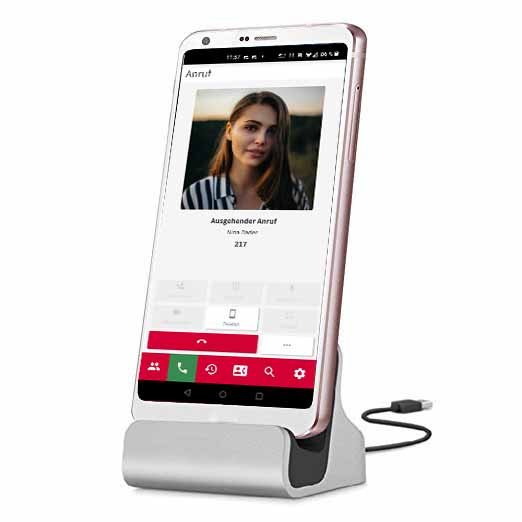
A first very helpful tip for the permanent use of the smartphone as a telephone device replacement is the use of a docking station, which provides the mobile device with continuous power. The PASCOM Mobile App has a built-in **Always On function**, which always keeps the display on when the PASCOM App is open.
**Advantage:** Handing over, accepting, and making calls from the PASCOM Desktop App via the mobile device works seamlessly and is therefore much faster, as the PASCOM Mobile App does not have to be woken up by a **Push-Call** first.
## Android App Doesn't Ring
A common problem with Android devices is that incoming calls on the PASCOM Mobile App are not signaled (i.e., the phone does not ring), especially if the app has not been actively used for a while. This is usually due to aggressive battery or data-saving mechanisms of the Android operating system.
The PASCOM app is "woken up" by a **Push Notification** from the Google servers when a call comes in. If the operating system restricts the app or its data connection in the background, this important push notification cannot be delivered.
Go through the following points step by step. As each smartphone manufacturer (Samsung, Google, Xiaomi, Huawei, etc.) names the menus slightly differently, the designations on your device may vary slightly.
### 1. Check App and System Updates
Ensure that both the PASCOM app and the Android operating system are up to date. Outdated versions can cause compatibility problems.
1. Open the **Google Play Store** and check under "Manage apps & device" to see if an update for the PASCOM app is available.
2. Go to **Settings > System > System update** (or similar) on your phone to check for Android updates.
### 2. Adjust Battery & Power Settings
This is the most common cause of the problem. Android tries to minimize battery consumption by terminating or severely restricting apps running in the background. The PASCOM app must be excluded from these optimizations.
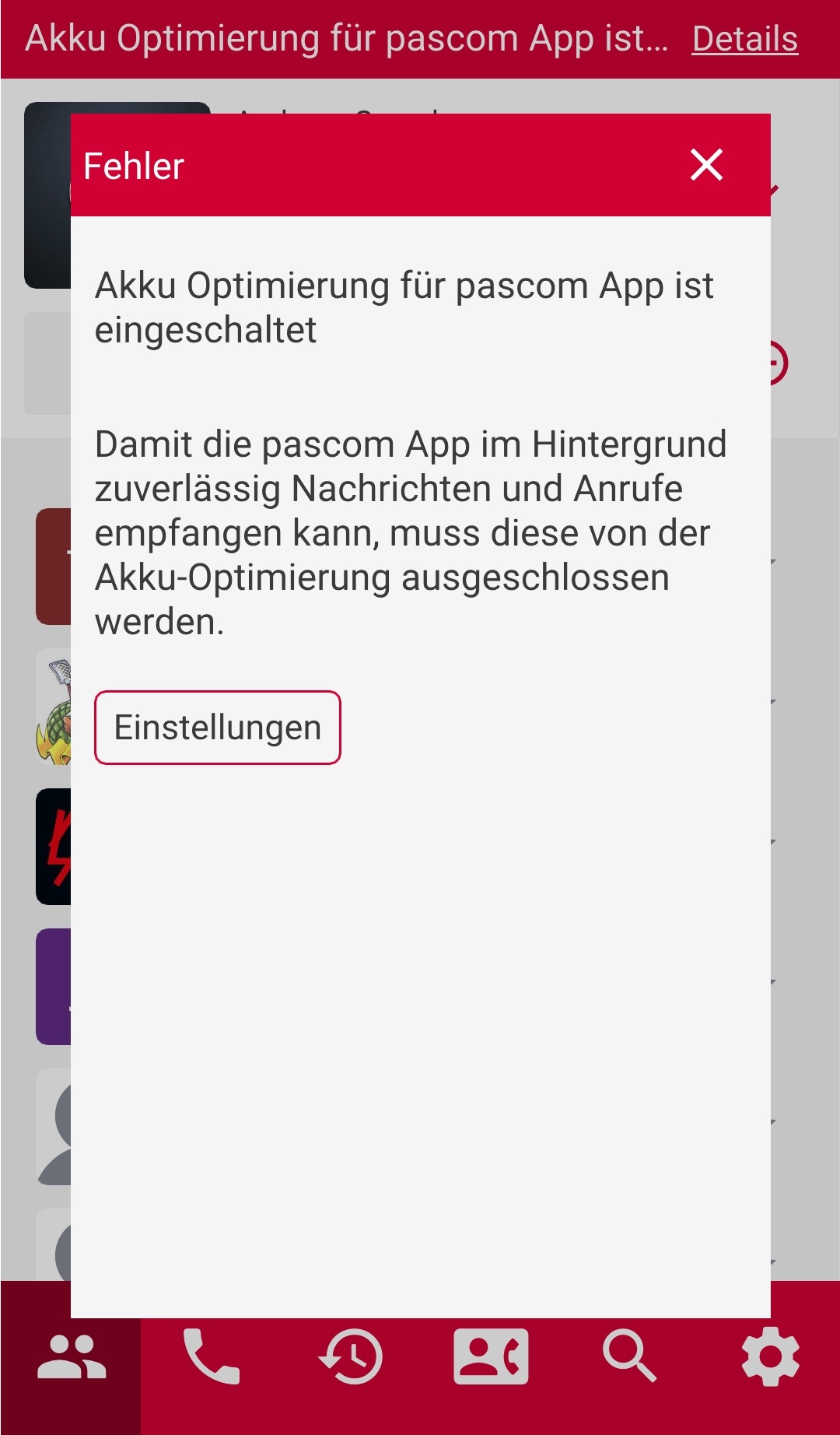
**Message:** - Battery optimization for PASCOM app is enabled
#### The Solution
Click on the **"Details"** link in the message to get to the following page.
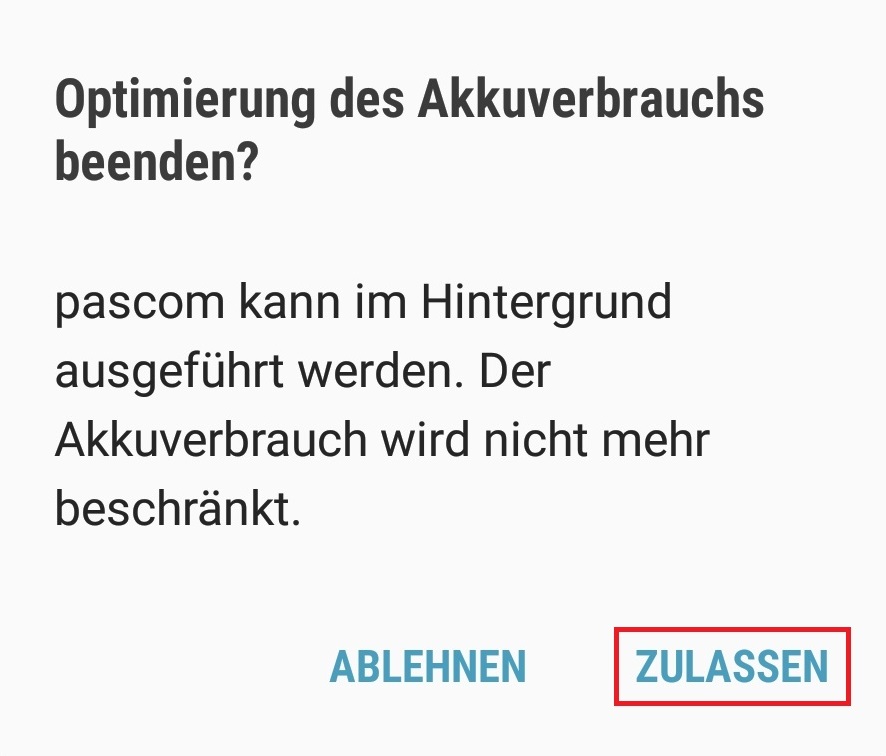
Via the **Settings** button, the PASCOM app wants to perform the optimization for you and needs access to the Android power saving settings. You allow this with a click on **Allow**.
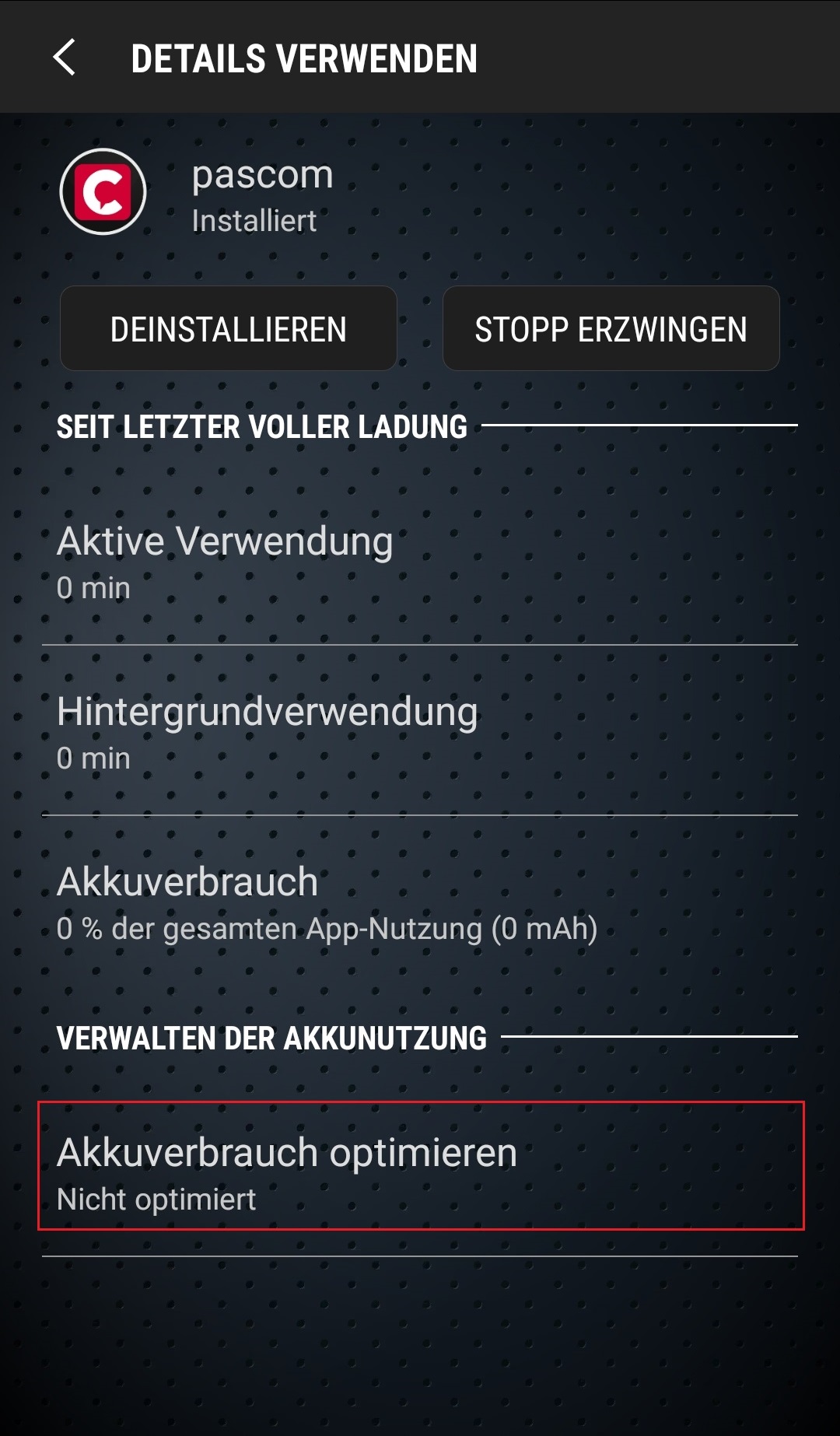
#### Deactivate Battery Consumption Optimization Manually
1. Open the **Settings** on your Android device.
2. Navigate to **Apps** > **See all apps** > **pascom**.
3. Tap on the menu item **Battery** (or "App battery usage").
4. Select the option **Unrestricted** or **Not optimized**. Ensure that the PASCOM app is not running in "optimized" or "restricted" mode.
The path to the battery optimization settings is different for each manufacturer.
| Manufacturer | Path to Settings |
| ---------------------- | ------------------------------------------------------------------------------------------------------------------------------------------------------------------------------------------------------------- |
| **HTC** | Settings > Power > Battery optimization > Not optimized > All apps > PASCOM Mobile App > Don't optimize |
| **Huawei** |
1. Set the power settings to "Normal" and add the PASCOM Mobile App to "Protected Apps".
2. Settings > Apps > Advanced > Ignore optimizations > Allowed > All apps > PASCOM Mobile App > Allow.
|
| **LG** | Settings > Battery & power saving > Battery usage > Ignore optimizations > turn on for PASCOM Mobile App. |
| **Motorola** | Settings > Battery > Select the menu in the top right corner > Battery Optimization > Not optimized > All apps > PASCOM Mobile App > Don't optimize. |
| **OnePlus** (OxygenOS) | Settings > Battery > Battery Optimization > Select menu at top > switch to All apps list > PASCOM Mobile App > Don't optimize. |
| **Samsung** | Settings > Apps > Select the menu in the top right corner > Special access > Optimize battery usage > All apps > Switch off for PASCOM Mobile App. |
| **Sony** | Settings > Battery > Select the menu in the top right corner > Battery Optimization > Apps > PASCOM Mobile App. |
| **Xiaomi** (MIUI OS) | Settings > Additional Settings > Battery & performance > Manage apps' battery usage > Apps > PASCOM Mobile App. |
{% hint style="info" %}
**Manufacturer-Specific Terms:** Battery optimization has different names depending on the manufacturer. Look for terms like:
* **Samsung:** "Deep sleep", "Apps in standby", "Unmonitored apps"
* **Xiaomi (MIUI):** "Power saving mode", "App battery usage"
* **OnePlus (OxygenOS):** "Battery optimization", "Advanced optimization"
* **Huawei (EMUI):** "App launch", "Background cleanup" Make sure that the PASCOM app is excluded from all these mechanisms and is allowed to run in the background.
{% endhint %}
### 3. Data Connection & Data Saver
The push notification requires a stable internet connection.
1. **Enable mobile data:** For better and more reliable delivery of calls, we strongly recommend permanently enabling mobile data for the PASCOM app, even if you mainly use Wi-Fi.
2. **Disable Data Saver:** If you have enabled Data Saver on your device, you must add an exception for the PASCOM app.
3. Navigate to **Settings > Network & internet > Data Saver**.
4. Select **Unrestricted data** and make sure the switch for the PASCOM app is **enabled**.
5. **Background data:** Also check under **Settings > Apps > PASCOM > Mobile data & Wi-Fi** that the **Background data** option is enabled.
### 4. Check App Notifications
Sometimes the problem is as simple as a disabled notification.
1. Navigate to **Settings > Apps > PASCOM > Notifications**.
2. Make sure that **all** switches for notifications of the PASCOM app are enabled, especially for "Incoming calls".
### Workaround: Use GSM Mode
If the steps above do not solve the problem permanently, you can use **GSM mode** as a reliable alternative. In this mode, the PASCOM app forwards incoming calls as a normal mobile call to your SIM card number. This bypasses the entire push issue, as a classic call is always connected.
Instructions on how to activate GSM mode can be found in our documentation on [PASCOM App Telephony](/en/user/pascom-app-userguide/telephony.md#activate-gsm-fallback).
### Re-pair the App
If none of the above solutions work, there may be a problem with the push token. In this case, it can help to re-pair the app with your user account.
Instructions on how to do this can be found in our documentation on [Pairing the Mobile App](/en/user/pascom-app-userguide/pairing.md).
## Calls on the Mobile Device are Always Marked as Answered via GSM
Calls on mobile devices are automatically considered "answered" as soon as the GSM network connects the call, even if, for example, the mobile device's voicemail has been activated.
To prevent this, you can answer a call via GSM on the mobile device via DTMF. To do this, you must press at least one DTMF key (a digit on the mobile device's dialpad) within 4 seconds of picking up to truly answer the call.
The corresponding setting must be set on the Admin UI in the [Mobile Device Settings](/en/setup/endpoints/mobile-integration.md).
## Problems Waking Up the PASCOM Mobile App for Incoming Calls via a Queue (Android/iOS)
The main reason for this behavior is that all push calls to wake up the PASCOM Mobile App have different delays (latencies). This also applies to high-priority push calls. The mobile device itself also needs a certain amount of time to connect to the cloud phone system. All these latencies add up to several seconds.\
If you have a high-volume queue, short waiting times, or agents who react quickly, it can happen that a call is answered before it actually arrives at the mobile device.
**Solution:**
1. Keep your mobile device switched on, e.g. in a docking station, and the PASCOM Mobile App in the foreground. This eliminates all push and connection latencies.
---
# Agent Instructions
This documentation is published with GitBook. GitBook is the documentation platform designed so that both humans and AI agents can read, navigate, and reason over technical content effectively. Learn more at gitbook.com.
## Querying This Documentation
If you need additional information that is not directly available in this page, you can query the documentation dynamically by asking a question.
Perform an HTTP GET request on the following URL with the `ask` and `goal` query parameters:
```
GET https://docs.pascom.net/en/user/pascom-app-userguide/mobile-troubleshooting.md?ask=&goal=
```
`ask` is the immediate question: it should be specific, self-contained, and written in natural language.
`goal` is what the user is ultimately trying to achieve, the reason they need the answer. Sharing it helps GitBook give you a better, more relevant answer. A goal is most helpful when it describes the outcome the user wants rather than restating the question. For example, with `ask=how do I create an API token`, a goal like `build a script that syncs our docs to a CMS` lets GitBook tailor the answer to that use case.
The response will contain a direct answer to the question and relevant excerpts and sources from the documentation.
Use this mechanism when the answer is not explicitly present in the current page, you need clarification or additional context, or you want to retrieve related documentation sections.