> For the complete documentation index, see [llms.txt](https://docs.pascom.net/llms.txt). Markdown versions of documentation pages are available by appending `.md` to page URLs; this page is available as [Markdown](https://docs.pascom.net/en/user/pascom-app-userguide/linekeys.md).
# Line Key Configuration
In this guide we will show you how to set up the line keys of your hardware phone
## Trainings Video
coming soon
## Overview
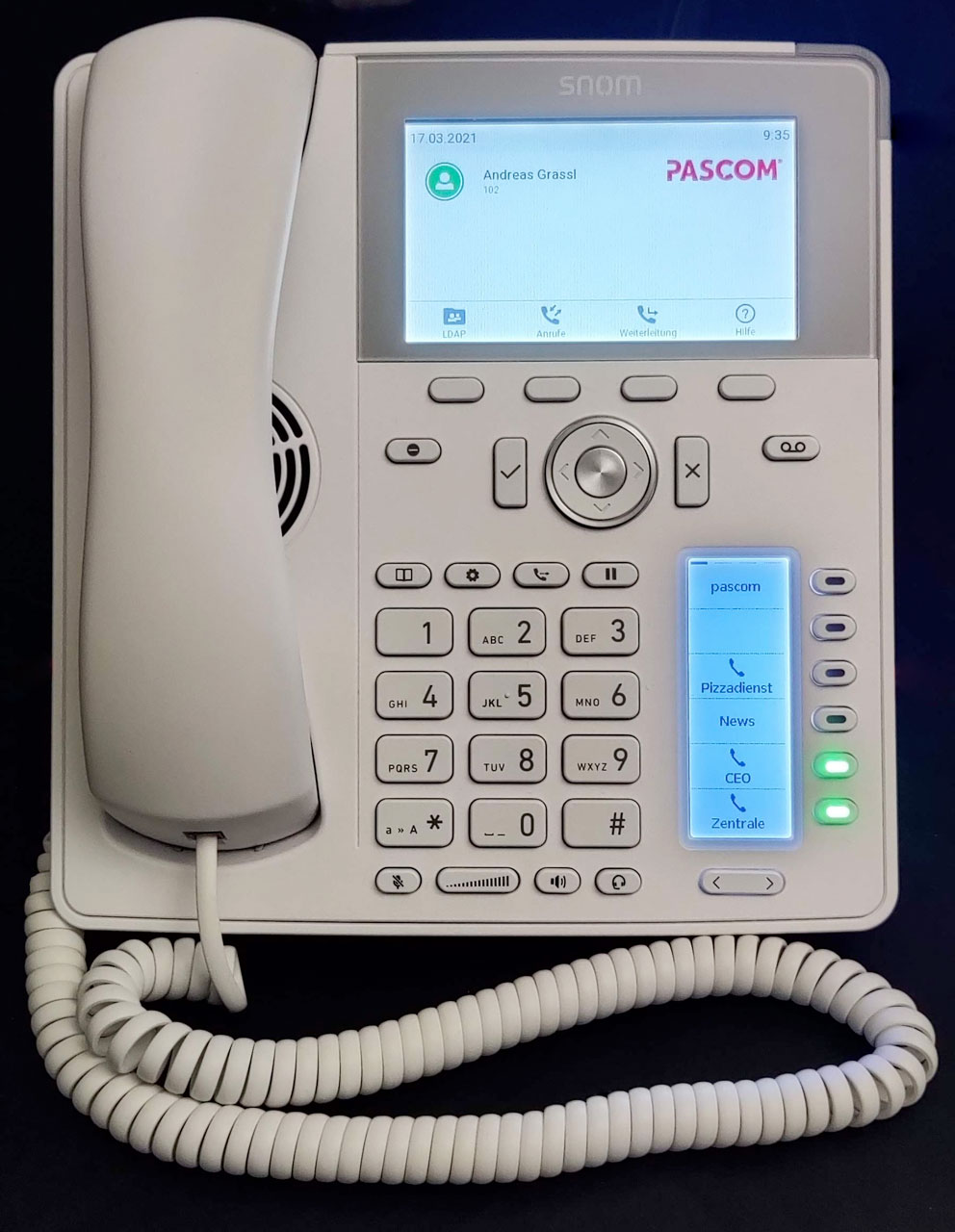
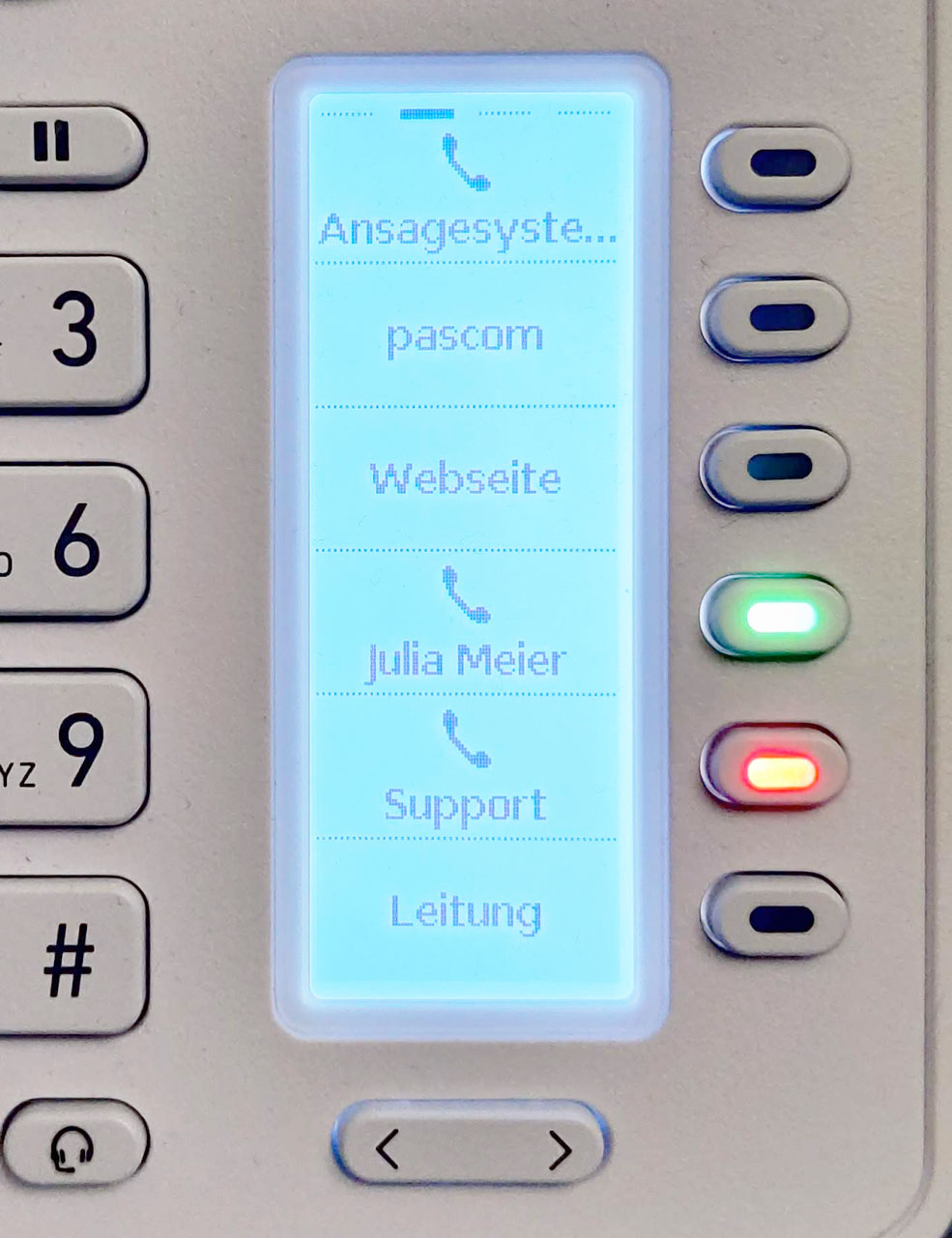
Line keys are the speed dial keys with busy lamp field (BLF) on hardware telephones. These keys can be configured and assigned as desired and show different LED colors depending on their status.
## Where do I find the Line Keys?
The function of the line keys can be found in the **App Settings**.
1. Open the **App Settings** via the PASCOM menu.

2. In the **Settings menu** click on **My devices**. You will then find the button **Configure line keys** for your **hardware phone**.

## Line Key Configuration
In the **Line Key Settings** overview, you can add new key configurations.

2. In the overview you can see already preconfigured **line keys**, which are locked by a **lock symbol**. These keys are globally predefined and cannot be **deleted** or **changed**.
Click the **Add key below** button to create your own new **line key**.
{% hint style="info" %}
**"A new line key cannot be created"**
If you cannot click the **Add key below** button, the function of own **line keys** is blocked by the administrator.
{% endhint %}
## Create a new Line Key
If you add a new **line key**, it will be inserted at the bottom of the list. The key configurations are always consecutive and the order of the list can only be rebuilt afterwards by deleting the last elements.
As you can see in the screenshot below, there are different **types** of **line keys**, which we will explain in more detail in the points below.

### Line Key - not used
The type **"not used"** blocks or locks a line key so that it cannot be used. This type is often used to create placeholders in the list.
### Line Key - Any Number

The type **"any number"** allows to store user-defined phone numbers. These can be **external** as well as **internal** numbers. In addition, you can also use **function codes**, as shown in our example above (PASCOM prompt system \*50).
### Line Key - PASCOM Menu

The type **"PASCOM menu"** allows to store the PASCOM menu on a **line key**. The PASCOM menu contains further useful functions for hardware telephones.
### Line Key - Open URL

The type **"Call URL"** allows to store **URL addresses**, which will be called when the **Line key** is pressed.
### Line Key - Contact List

The **"contact list"** type allows you to store phone numbers from your **contact list** and the **private / global phone book**.
### Line Key - Team loggon/ -off

The type **"team loggon/ -off"** allows you to loggon/ -off to **teams / call queues** You also have the possibility to apply this function to all **teams**, you are a member of.
## Apply Line Key Settings
Once your settings are complete or you have made changes to your **line keys**, you must apply them by clicking the **Save and Apply** button.
1. **Changes** to your line keys are immediately transmitted to your **hardware phone** so you can try them out right away.
## Remove Line Keys
To remove a **line key** you created yourself, simply click on the small **trash can icon**. Don't forget to apply the change via the **Save and Apply** button.

1. If you want to undo all changes / button configurations at once, use the link **Reset to default** at the top of the menu.
## Useful Information
1. Is it possible to set the LED colors of the **Busy Lamp Field(BLF)** itself?
No, this is controlled automatically by the PASCOM telephone system, e.g. for busy users, active extension switches or whether one is logged on or off in a team.
---
# Agent Instructions
This documentation is published with GitBook. GitBook is the documentation platform designed so that both humans and AI agents can read, navigate, and reason over technical content effectively. Learn more at gitbook.com.
## Querying This Documentation
If you need additional information that is not directly available in this page, you can query the documentation dynamically by asking a question.
Perform an HTTP GET request on the following URL with the `ask` and `goal` query parameters:
```
GET https://docs.pascom.net/en/user/pascom-app-userguide/linekeys.md?ask=&goal=
```
`ask` is the immediate question: it should be specific, self-contained, and written in natural language.
`goal` is what the user is ultimately trying to achieve, the reason they need the answer. Sharing it helps GitBook give you a better, more relevant answer. A goal is most helpful when it describes the outcome the user wants rather than restating the question. For example, with `ask=how do I create an API token`, a goal like `build a script that syncs our docs to a CMS` lets GitBook tailor the answer to that use case.
The response will contain a direct answer to the question and relevant excerpts and sources from the documentation.
Use this mechanism when the answer is not explicitly present in the current page, you need clarification or additional context, or you want to retrieve related documentation sections.