> For the complete documentation index, see [llms.txt](https://docs.pascom.net/llms.txt). Markdown versions of documentation pages are available by appending `.md` to page URLs; this page is available as [Markdown](https://docs.pascom.net/en/user/pascom-app-userguide/incoming-call.md).
# Answering Incoming Calls
In this guide, you will learn how to answer or accept incoming calls in the PASCOM app.
The PASCOM app provides several ways to answer an incoming call. You can choose the most comfortable method based on your work situation and the device you are using.
## 1. Answering via the Telephony Area
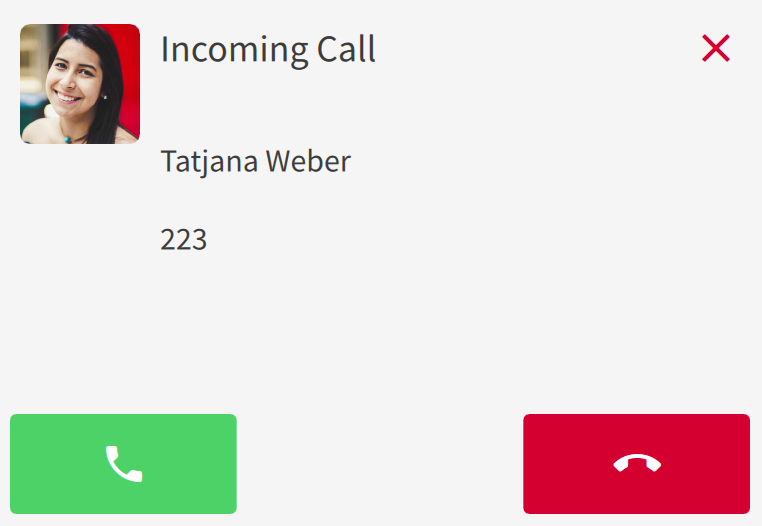
The classic method is through the app's telephony area. When a call comes in, the view changes to show the incoming call with options to answer or reject it.
Simply click on the **green receiver** to start the conversation.

## 2. Answering via Desktop Notification
Especially useful when you are working in other applications and the PASCOM app is running in the background or minimized: use the **Notification Pop-up**.
The small window appears at the edge of the screen and allows you to answer the call directly without having to bring the PASCOM window to the foreground first.
For more information about notifications, please refer to the guide on [Search & Notifications](/en/user/pascom-app-userguide/search.md).
## 3. Answering directly on the End Device
You don't necessarily have to use the mouse. Calls can also be answered directly via hardware, depending on which device is assigned to you:
* **Headsets:** Use the call answer button on supported headsets.
* **Mobile device:** Swipe or press as usual on your smartphone.
* **Desk phone / DECT:** Pick up the handset or press the speaker/headset button.
To learn more about managing your devices, see [Device Management](/en/user/pascom-app-userguide/mydevices.md).
## 4. Intelligent Pickup via Keyboard (Shortcuts)
For maximum efficiency or when using headsets without integrated call control support (e.g., Apple AirPods), **Intelligent Pickup** is a great option.
A global **keyboard shortcut** can be defined in the settings for this purpose. Pressing the key combination **Option + CMD + P** on Mac or **Ctrl + Alt + P** on Windows will immediately answer the incoming call, regardless of which application is currently active.
An overview of all keyboard shortcuts can be found in this [guide](/en/user/pascom-app-userguide/incoming-call.md).
---
# Agent Instructions
This documentation is published with GitBook. GitBook is the documentation platform designed so that both humans and AI agents can read, navigate, and reason over technical content effectively. Learn more at gitbook.com.
## Querying This Documentation
If you need additional information that is not directly available in this page, you can query the documentation dynamically by asking a question.
Perform an HTTP GET request on the following URL with the `ask` and `goal` query parameters:
```
GET https://docs.pascom.net/en/user/pascom-app-userguide/incoming-call.md?ask=&goal=
```
`ask` is the immediate question: it should be specific, self-contained, and written in natural language.
`goal` is what the user is ultimately trying to achieve, the reason they need the answer. Sharing it helps GitBook give you a better, more relevant answer. A goal is most helpful when it describes the outcome the user wants rather than restating the question. For example, with `ask=how do I create an API token`, a goal like `build a script that syncs our docs to a CMS` lets GitBook tailor the answer to that use case.
The response will contain a direct answer to the question and relevant excerpts and sources from the documentation.
Use this mechanism when the answer is not explicitly present in the current page, you need clarification or additional context, or you want to retrieve related documentation sections.