> For the complete documentation index, see [llms.txt](https://docs.pascom.net/llms.txt). Markdown versions of documentation pages are available by appending `.md` to page URLs; this page is available as [Markdown](https://docs.pascom.net/en/user/pascom-app-userguide/how-to-use-outbound-rules.md).
# Outbound Call Rules (Identities) for Outgoing Calls
Learn how to control your outbound caller ID using identities and make outgoing calls as a team.
Outbound call rules, also referred to as **Identities** within your PASCOM app, are a powerful tool that let you control how your caller ID appears when making outgoing calls. Whether you want to display your personal extension number (DID), an anonymous number, or even your team's phone number – identities give you full control over your caller ID presentation. This ensures that your communication always looks professional and appropriate in every situation and for every scenario.
### What Are Identities and How to Select Them?
Identities are predefined caller ID and display configurations that you can select before making an outbound call. They allow you to change the default caller ID signaling for your outbound calls. This is particularly useful if you make calls in different roles or need a specific caller identity depending on the context of the call you are making.
**How to select an identity:**
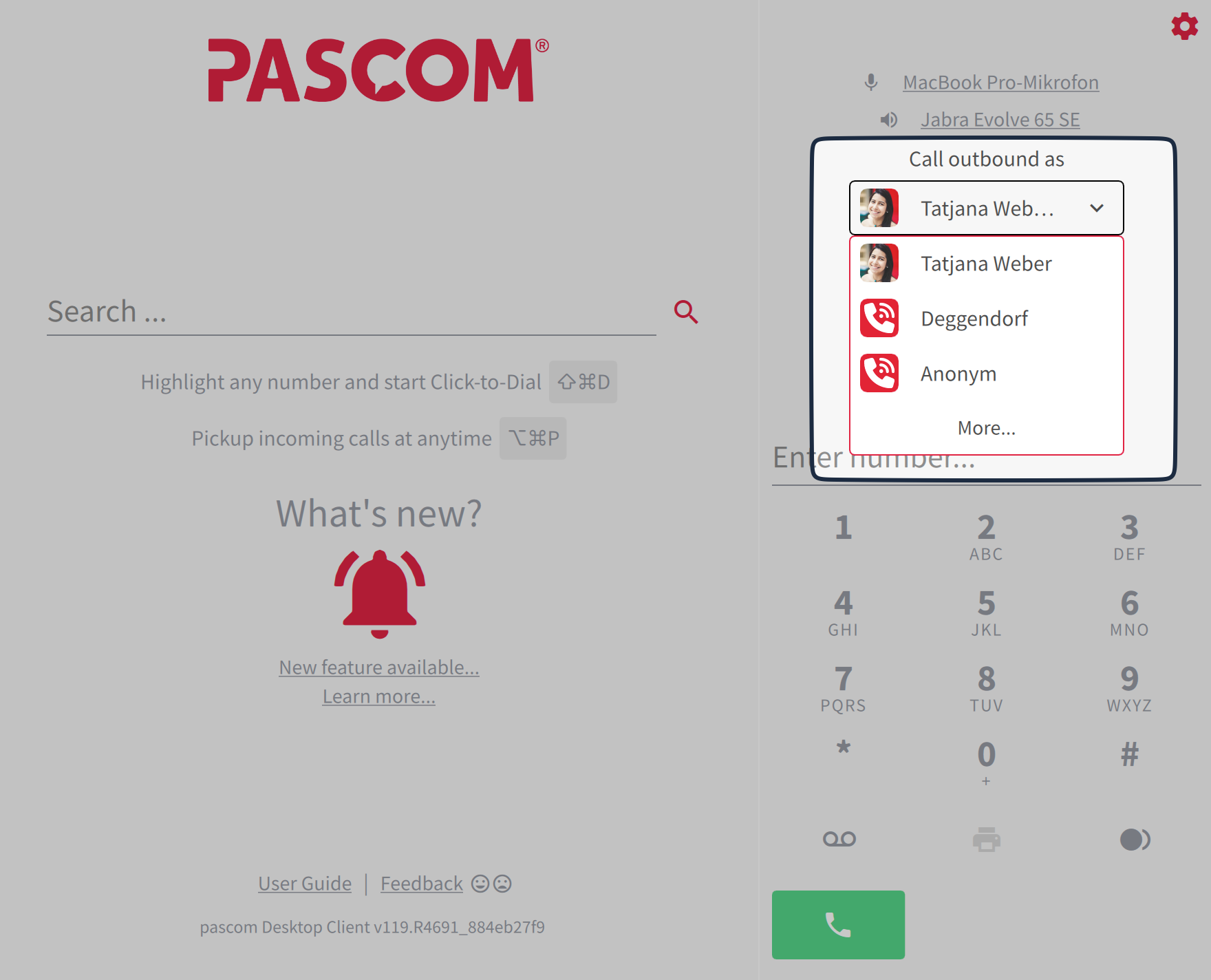
Before dialing a number or calling a contact, you will find an option to choose the identity in the PASCOM app's **telephony section**.
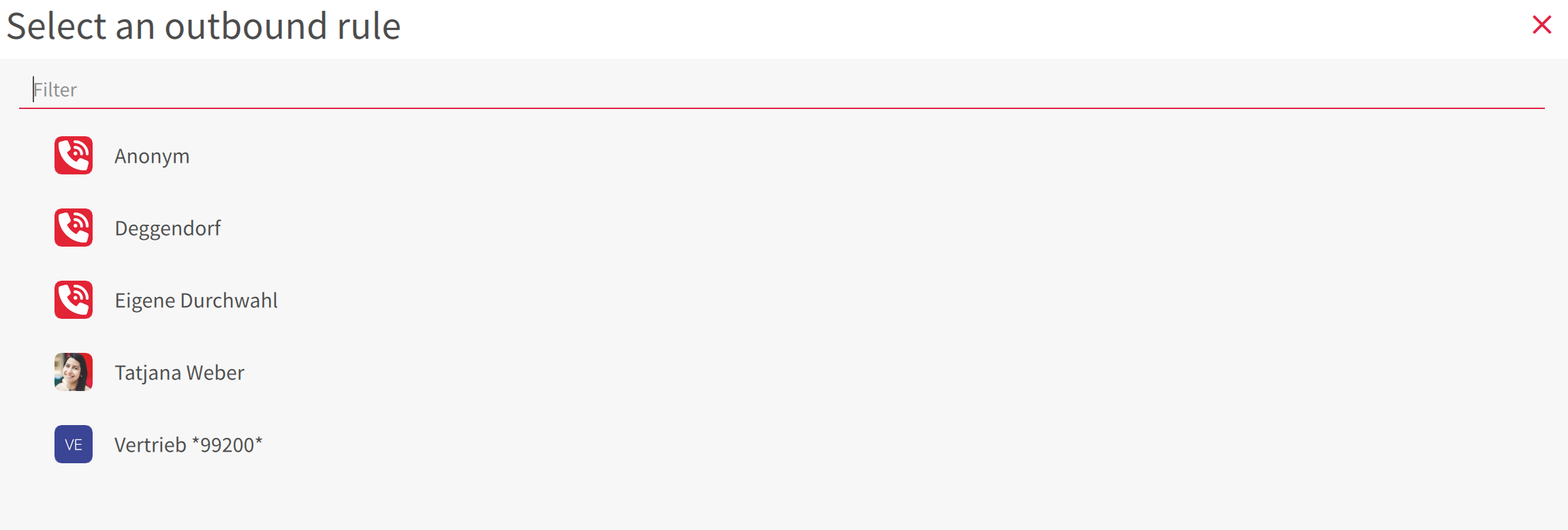
1. **Select the Identity:** Tap this option to open a list of available identities. You can choose from the following types:
* **Your personal extension:** Call using your direct number so the recipient can easily identify you.
* **Team (e.g. Support):** If you want to display your team’s number, select the **Team** option. You must be a member of a team for this option to appear.
* **Other assigned identities:** Depending on your configuration, you may have access to other custom numbers or identities.
Click **"More..."** to view additional identities.
### Acting as a Team: Displaying Team Number and Name
One of the most useful features of identities is the ability to **present yourself as a team**. This is ideal for support teams, sales departments, or any group that uses a shared caller identity. When you choose this option, the official team number (and optionally the team name) is displayed instead of your personal extension.
**Advantages of using a team identity:**
* **Consistent appearance:** your team phone number is always presented when making calls to customers, providing them with a single point of contact and portraying a professional and unified image.
* **Improved callback handling:** callbacks go directly to the team, even if the original call was made by an individual member.
{% hint style="success" %}
Imagine you’re part of the **"Support Team"**. When you make a call as “Support Team,” the recipient sees the support phone number and can directly return the call to that number. This improves customer satisfaction since callbacks reach your team immediately, eliminating unnecessary transfers.
{% endhint %}
### Intelligent Callbacks from the Call History
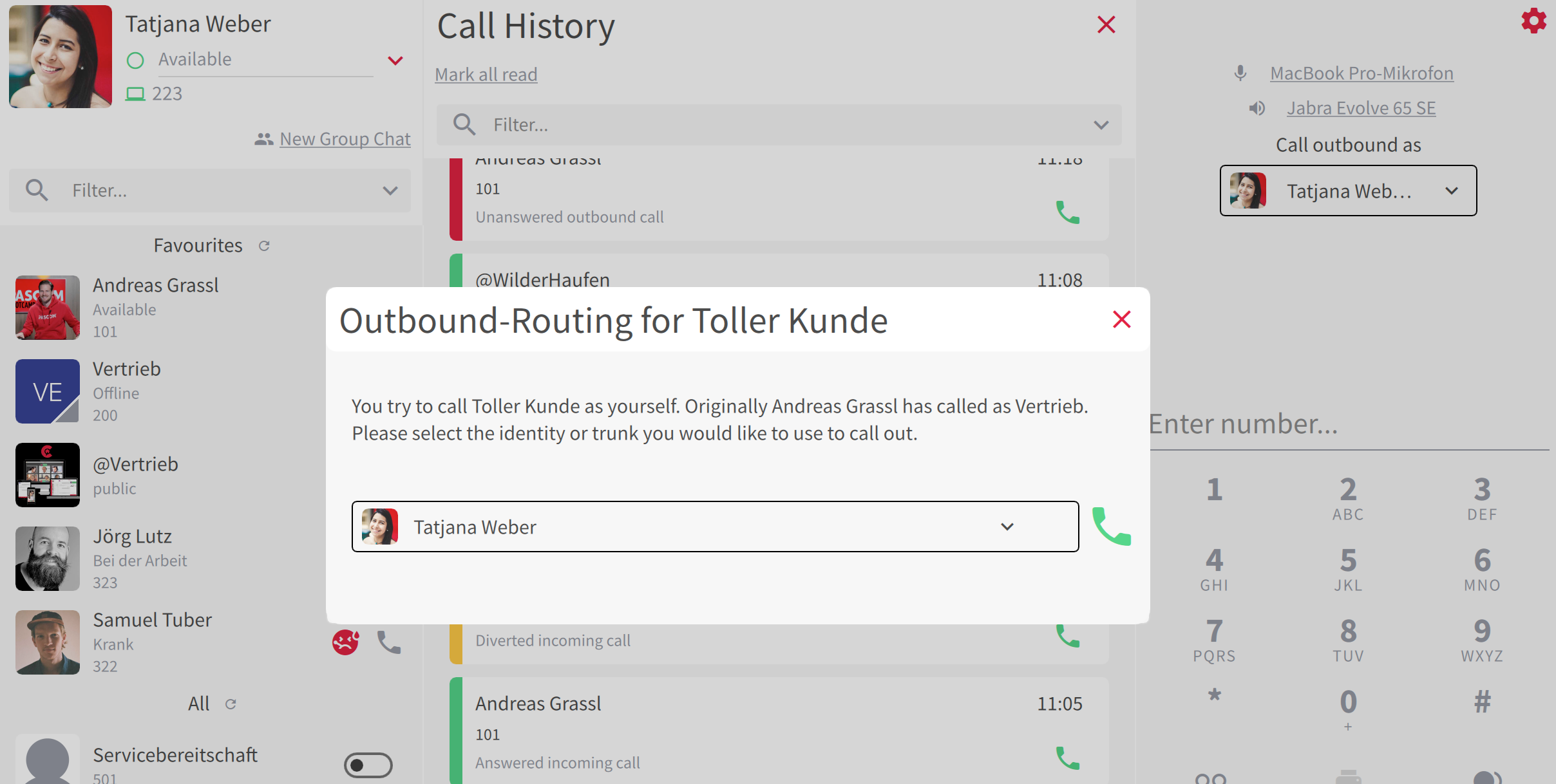
There’s another intelligent feature for callbacks made from your call histroy. When you return a call from an entry within the call history, the PASCOM app automatically ensures that the callback is made **using the correct originating identity**.
**What this means for you:**
* **No more confusion:** If you previously called as "Support Team," a callback from that journal entry will also be made as "Support Team." This prevents you from accidentally making callbacks using your personal business number when a team identity is required.
* **Always in the right context:** The app remembers which identity was used and automatically applies it, ensuring consistent and context-aware communication.
---
# Agent Instructions
This documentation is published with GitBook. GitBook is the documentation platform designed so that both humans and AI agents can read, navigate, and reason over technical content effectively. Learn more at gitbook.com.
## Querying This Documentation
If you need additional information that is not directly available in this page, you can query the documentation dynamically by asking a question.
Perform an HTTP GET request on the following URL with the `ask` and `goal` query parameters:
```
GET https://docs.pascom.net/en/user/pascom-app-userguide/how-to-use-outbound-rules.md?ask=&goal=
```
`ask` is the immediate question: it should be specific, self-contained, and written in natural language.
`goal` is what the user is ultimately trying to achieve, the reason they need the answer. Sharing it helps GitBook give you a better, more relevant answer. A goal is most helpful when it describes the outcome the user wants rather than restating the question. For example, with `ask=how do I create an API token`, a goal like `build a script that syncs our docs to a CMS` lets GitBook tailor the answer to that use case.
The response will contain a direct answer to the question and relevant excerpts and sources from the documentation.
Use this mechanism when the answer is not explicitly present in the current page, you need clarification or additional context, or you want to retrieve related documentation sections.