> For the complete documentation index, see [llms.txt](https://docs.pascom.net/llms.txt). Markdown versions of documentation pages are available by appending `.md` to page URLs; this page is available as [Markdown](https://docs.pascom.net/en/user/pascom-app-userguide/ai-transcription-of-recordings.md).
# AI Transcription of Call Recordings
Learn how to view and use call recordings in text form
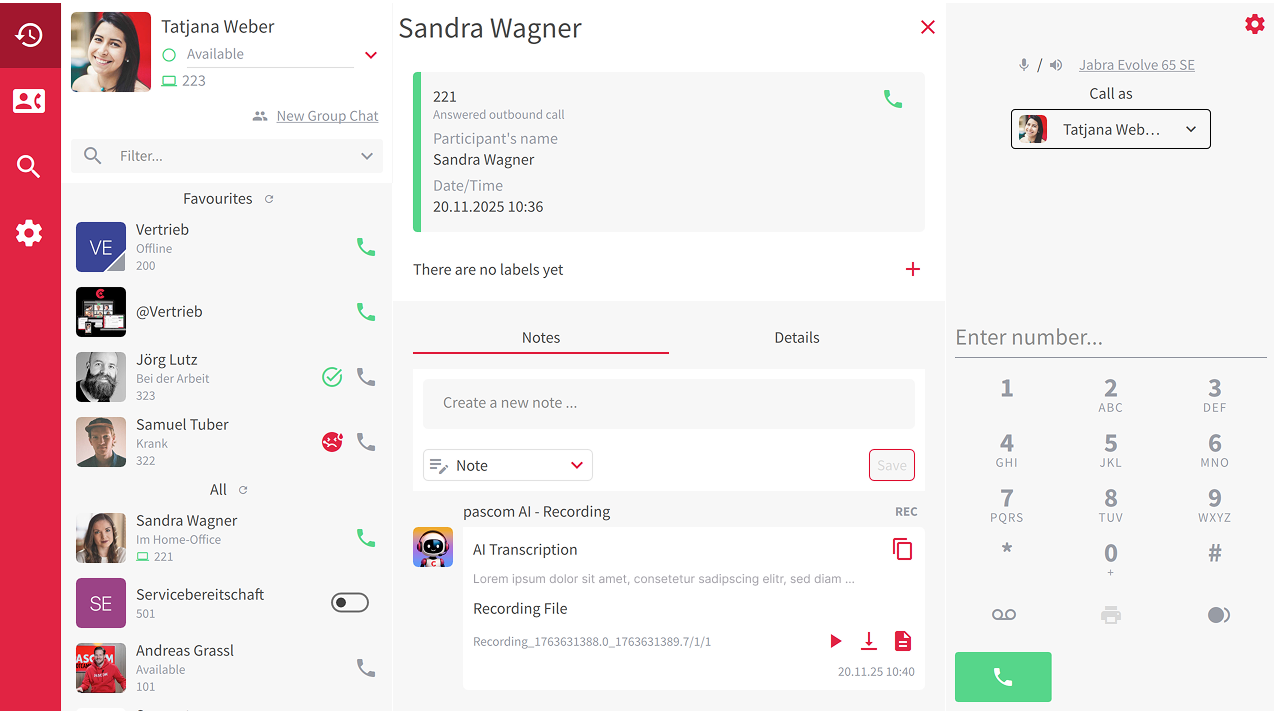
Utilize the powerful AI transcriptions of your PASCOM cloud phone system directly in the PASCOM app. This function automatically converts call recordings into text form, allowing you to manage them effortlessly. The transcribed texts can be found directly in the journal entry in the call log.
### Find AI Transcriptions in the Journal
In the call log of your PASCOM app, AI transcription entries are easily recognizable by a **REC symbol**.
1. **Access the Call Log:** Open the call log to view the journal entry with the **REC symbol**.
2. **AI Transcription:** The text processed by the AI transcription can be found under the notes and is specially marked. Look for note entries with a small **AI robot avatar**.
3. **Transcription in Progress:** This status means that the processing of the call recording by the AI agent is not yet complete. This can take several minutes, depending on the length of the recorded conversation.
### Advantages of AI Transcription
A major advantage of AI transcription is that call recordings in text form can be searched and are easier to find later. Particularly the context of a phone call is comprehensible at a glance, without having to listen to the entire audio file.
Naturally, the journal entry of an AI transcription offers the same functions as journal entries of calls. They can be marked as **read/unread** and further edited with **notes**.
### AI Transcription is disabled
If AI transcription is not working, the function must be enabled in the [Call Recording System](/en/operations/analytics/recording.md). This can be done by administrators or system managers.
---
# Agent Instructions
This documentation is published with GitBook. GitBook is the documentation platform designed so that both humans and AI agents can read, navigate, and reason over technical content effectively. Learn more at gitbook.com.
## Querying This Documentation
If you need additional information that is not directly available in this page, you can query the documentation dynamically by asking a question.
Perform an HTTP GET request on the following URL with the `ask` and `goal` query parameters:
```
GET https://docs.pascom.net/en/user/pascom-app-userguide/ai-transcription-of-recordings.md?ask=&goal=
```
`ask` is the immediate question: it should be specific, self-contained, and written in natural language.
`goal` is what the user is ultimately trying to achieve, the reason they need the answer. Sharing it helps GitBook give you a better, more relevant answer. A goal is most helpful when it describes the outcome the user wants rather than restating the question. For example, with `ask=how do I create an API token`, a goal like `build a script that syncs our docs to a CMS` lets GitBook tailor the answer to that use case.
The response will contain a direct answer to the question and relevant excerpts and sources from the documentation.
Use this mechanism when the answer is not explicitly present in the current page, you need clarification or additional context, or you want to retrieve related documentation sections.