> For the complete documentation index, see [llms.txt](https://docs.pascom.net/llms.txt). Markdown versions of documentation pages are available by appending `.md` to page URLs; this page is available as [Markdown](https://docs.pascom.net/en/user/pascom-app-userguide/ai-agents-in-pascom-app.md).
# Using AI Agents in the PASCOM Call Logs
Learn how to view call data collected by AI agents within the PASCOM app's team call logs.
Your PASCOM cloud phone system allows you to benefit from flexible, powerful AI Agents directly within your PASCOM app for desktop and mobile. To use and benefit from PASCOM AI agents feature, you will need to be a member of a Team (Call Queue) where calls are handled by an AI Agent, which will give you and your team easy access to data collected from calls handled by the AI Agent directly within the Team's Call Logs - providing you with an instant overview of the information and therefore enabling you to further enhance your customer service.
### Viewing AI Agent Call Details in the Journal
Within the Team Call History in your PASCOM App, call logs created by the AI Agent are easily recognisable and provide a wealth of additional information regarding the call, providing you with an instant overview:
1. **Access the Team Journal:** To open a team's call history, simply select the team and open the team journal (you must be a member of the team).
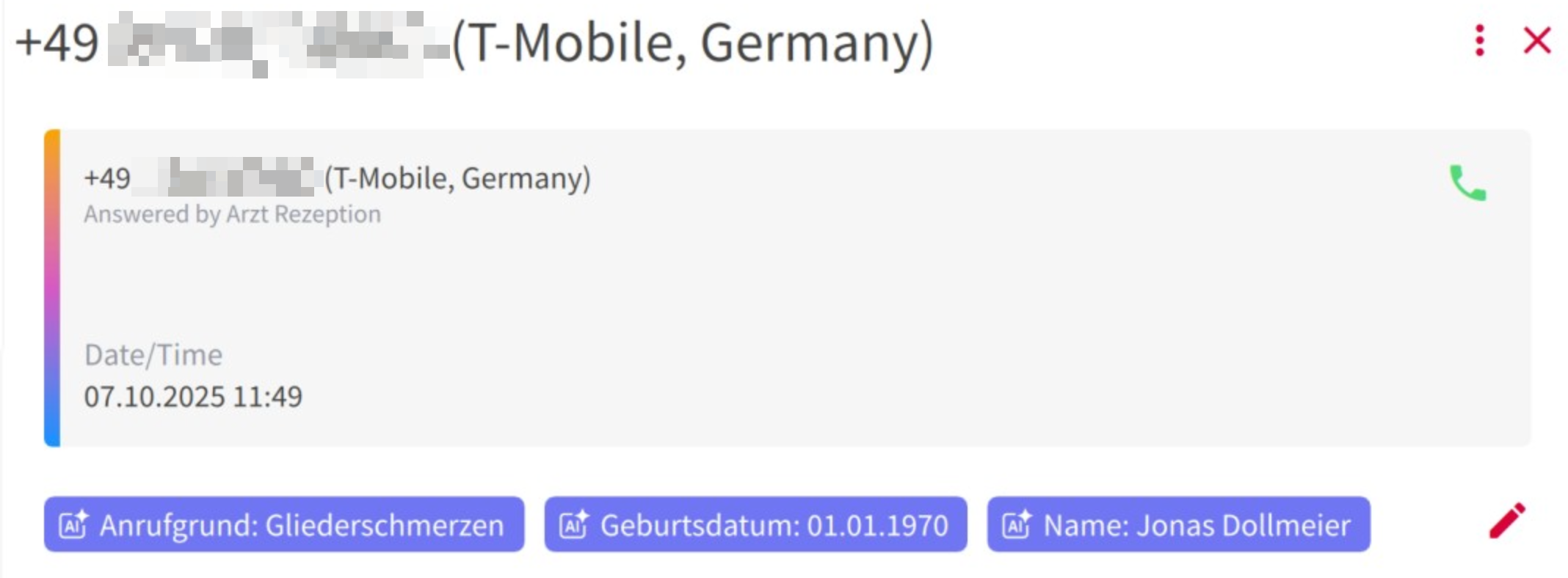
2. **AI Journal Entries:** Entries processed by an AI agent are specifically marked, using a colour gradient to make them stand out from other entries.
3. **Data Collected by an AI Agent:** **Purple Labels with AI Icon:** Key information identified by the AI agent during the call — which could include the **reason for the call**, the **date of birth**, or the **caller’s name** — is displayed in distinctive purple labels. Each label also features a small **AI icon**.
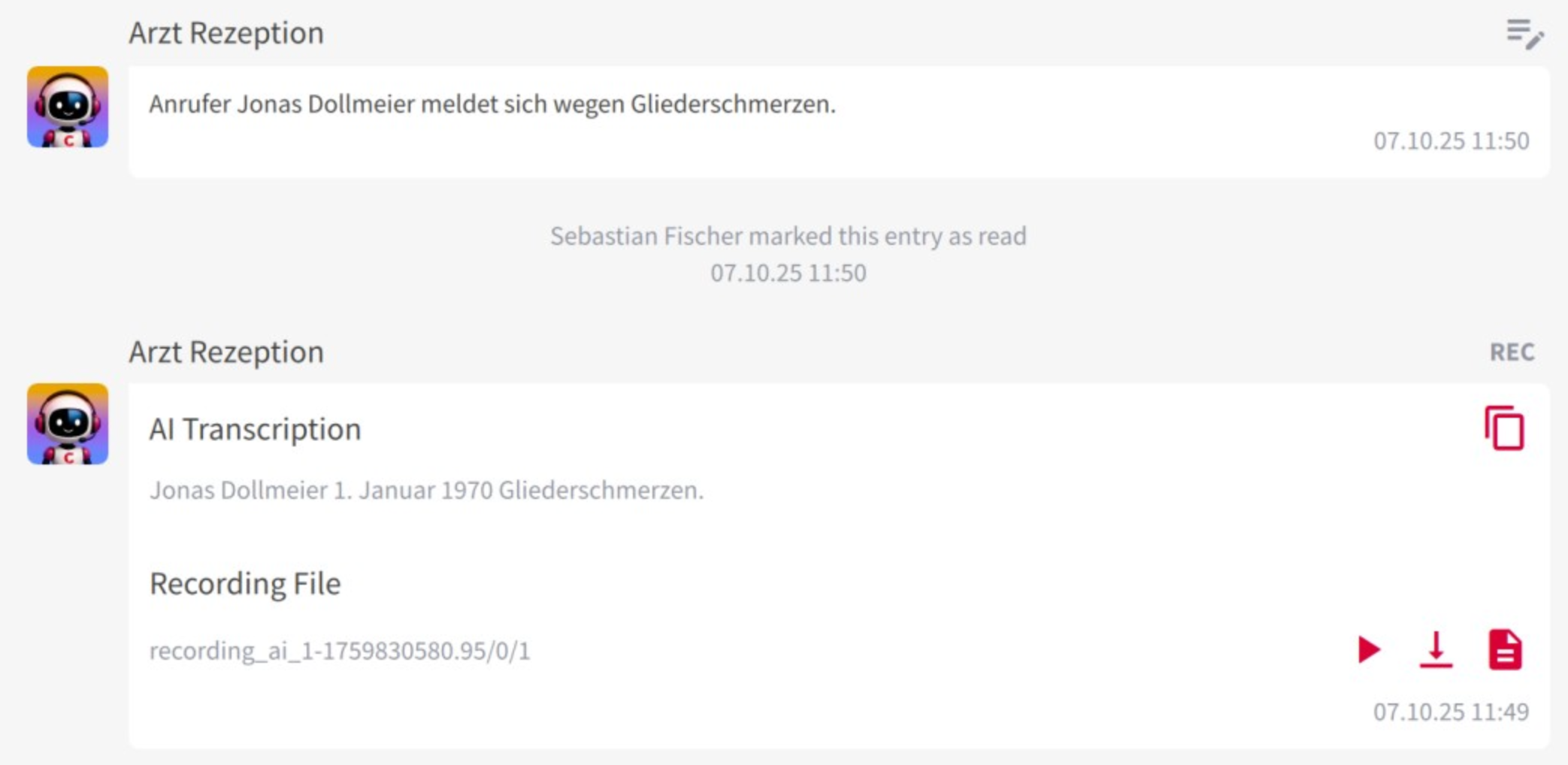
**Brief Call Summary:** Directly below the labels, you’ll find a **concise summary** of the call. This summary is generated by the AI agent and summarises the main points within the call in just a few sentences — allowing you to quickly understand the caller’s enquiry without reading lengthy notes.
**Full Call Recording:** If you need more detailed information or want to listen to the conversation again, the **complete call recording** is available right within the journal entry. You can play it at any time to review all details and ensure that no important information was missed.
Of course, AI agent journal entries offer the same functions as regular call journal entries. They can be marked as **read/unread** and further edited using the PASCOM **notes** feature.
---
# Agent Instructions
This documentation is published with GitBook. GitBook is the documentation platform designed so that both humans and AI agents can read, navigate, and reason over technical content effectively. Learn more at gitbook.com.
## Querying This Documentation
If you need additional information that is not directly available in this page, you can query the documentation dynamically by asking a question.
Perform an HTTP GET request on the following URL with the `ask` and `goal` query parameters:
```
GET https://docs.pascom.net/en/user/pascom-app-userguide/ai-agents-in-pascom-app.md?ask=&goal=
```
`ask` is the immediate question: it should be specific, self-contained, and written in natural language.
`goal` is what the user is ultimately trying to achieve, the reason they need the answer. Sharing it helps GitBook give you a better, more relevant answer. A goal is most helpful when it describes the outcome the user wants rather than restating the question. For example, with `ask=how do I create an API token`, a goal like `build a script that syncs our docs to a CMS` lets GitBook tailor the answer to that use case.
The response will contain a direct answer to the question and relevant excerpts and sources from the documentation.
Use this mechanism when the answer is not explicitly present in the current page, you need clarification or additional context, or you want to retrieve related documentation sections.