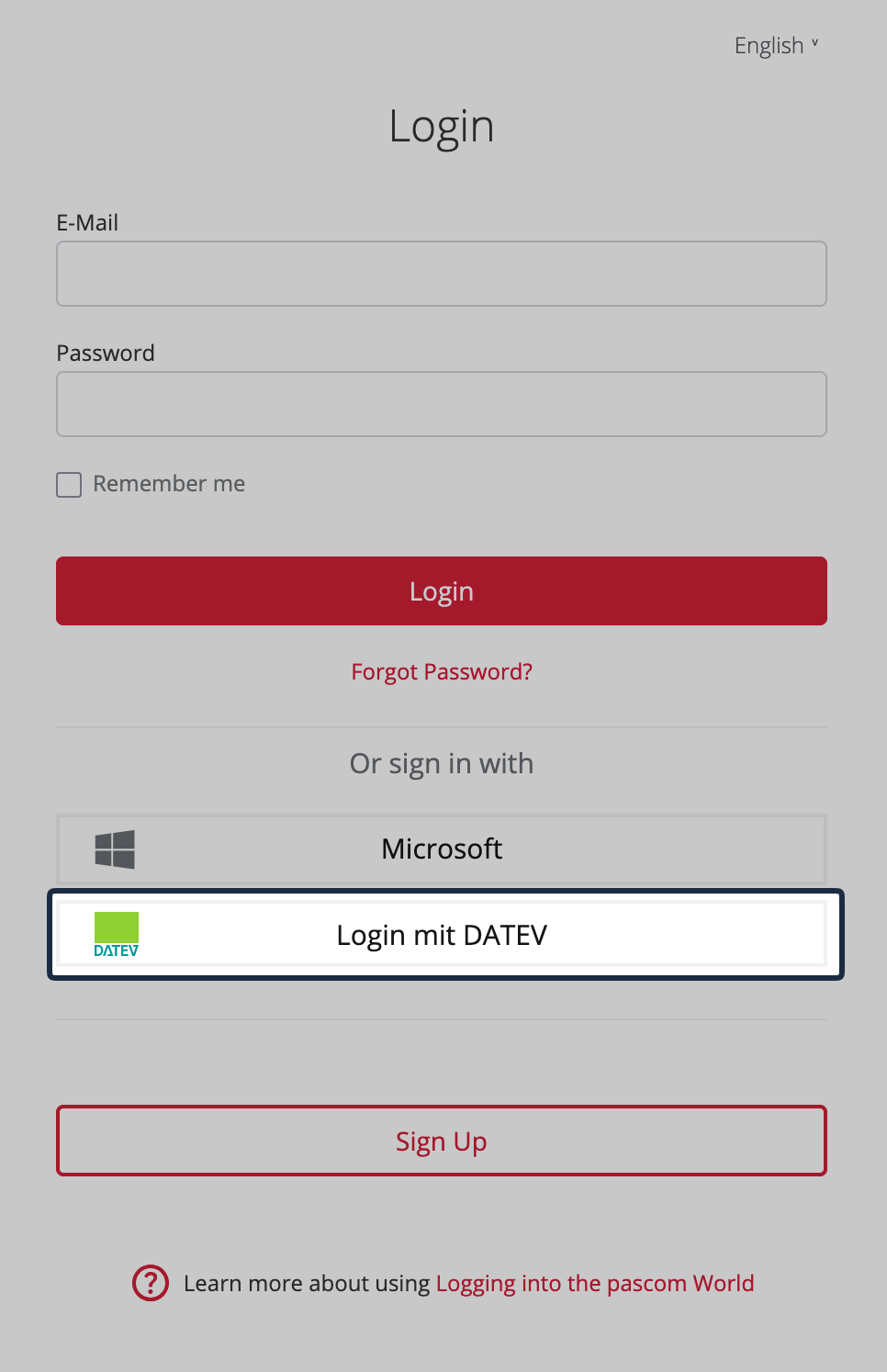
> For the complete documentation index, see [llms.txt](https://docs.pascom.net/llms.txt). Markdown versions of documentation pages are available by appending `.md` to page URLs; this page is available as [Markdown](https://docs.pascom.net/en/start/first-steps/login.md).
# Logging into the PASCOM World
Comprehensive overview of all login methods for PASCOM App, myPASCOM Portal, and Admin Dashboard
The PASCOM platform offers multiple secure login methods for different usage scenarios. Whether you need to access telephony features as an end user or configure system settings as an administrator - simply choose the login method that suits you best:
{% tabs %}
{% tab title="PASCOM App" %}
### PASCOM App Login
The configured login method for your user account will be provided by your system administrator.

#### Local User Login

* Username: `YourUsername@YourPhoneSystem`
* Password: Your individual user password
#### Email Login

* Email: `Your@Company-Email.com`
* Password: Your individual user password
#### Microsoft Single Sign-On

1. Click **Microsoft**
2. Select your organizational account
3. Confirm permissions
{% hint style="info" %}
**SSO Benefits:**\
✓ No separate passwords\
✓ Automatic 2-factor authentication\
✓ Central access management
{% endhint %}
#### DATEV Single Sign-On
1. Click **DATEV**
2. Follow the login steps from DATEV (SmartLogin, SmartCard or mIDentity)
3. Confirm the permissions that PASCOM may read user data
{% hint style="info" %}
**Benefits of DATEV SSO:**\
✓ No separate passwords\
✓ DATEV-Security policy
{% endhint %}
#### Successful PASCOM App Login

{% endtab %}
{% tab title="myPASCOM Portal" %}
### Web Portal Access
By registering an account in the [myPASCOM Portal](https://my.pascom.net), you gain access to manage your cloud phone system. Registration requires a corporate email address with your business domain (no free email services).
#### Email Login

* Email: `Your@Company-Email.com`
* Password: Your myPASCOM portal password
{% hint style="info" %}
The portal password is separate from your telephony password used for the PASCOM App!
{% endhint %}
#### Microsoft Single Sign-On

1. Click **Microsoft**
2. Select your organizational account
3. Confirm permissions
To import users from the Microsoft ecosystem into your PASCOM cloud phone system, use our connector for [Microsoft 365 via Entra ID](/en/integrations/connector/contacts-microsoft-365.md).
#### DATEV Single Sign-On
1. Click **DATEV**
2. Follow the login steps from DATEV (SmartLogin, SmartCard or mIDentity)
3. Confirm the permissions that PASCOM may read user data
{% endtab %}
{% tab title="Admin Dashboard" %}
### Administrator Access to Admin Dashboard
We recommend accessing the admin interface via the myPASCOM customer portal. This method works simply and straightforwardly without any prerequisites.
#### Login via myPASCOM Portal
In the [subscription details](/en/account/mypascom-userguide/subscriptions.md), you'll find the **URL** to your phone system in the PASCOM Cloud. Click the **URL** to access the admin interface directly without additional login steps, as authentication is already handled through your myPASCOM portal login.
**For the following login options, please note:**
Direct access to the admin interface requires knowing the direct URL of your PASCOM Cloud phone system. This method is particularly suitable for users without myPASCOM portal access or those preferring direct admin interface login.
The direct URL format is:
```
pascom.cloud/nameofphonesystem
```
#### Local User Login

* Username: `YourUsername@YourPhoneSystem`
* Password: Your individual user password
#### Email Login

* Email: `Your@Company-Email.com`
* Password: Your individual user password
#### Microsoft Single Sign-On

1. Click **Microsoft**
2. Select your organizational account
3. Confirm permissions
#### DATEV Single Sign-On
1. Click **DATEV**
2. Follow the login steps from DATEV (SmartLogin, SmartCard or mIDentity)
3. Confirm the permissions that PASCOM may read user data
{% endtab %}
{% endtabs %}
### Users on Multiple Phone Systems
If your login credentials are associated with multiple phone systems, you can easily select the desired system during the PASCOM App login process.

---
# Agent Instructions
This documentation is published with GitBook. GitBook is the documentation platform designed so that both humans and AI agents can read, navigate, and reason over technical content effectively. Learn more at gitbook.com.
## Querying This Documentation
If you need additional information that is not directly available in this page, you can query the documentation dynamically by asking a question.
Perform an HTTP GET request on the following URL with the `ask` and `goal` query parameters:
```
GET https://docs.pascom.net/en/start/first-steps/login.md?ask=&goal=
```
`ask` is the immediate question: it should be specific, self-contained, and written in natural language.
`goal` is what the user is ultimately trying to achieve, the reason they need the answer. Sharing it helps GitBook give you a better, more relevant answer. A goal is most helpful when it describes the outcome the user wants rather than restating the question. For example, with `ask=how do I create an API token`, a goal like `build a script that syncs our docs to a CMS` lets GitBook tailor the answer to that use case.
The response will contain a direct answer to the question and relevant excerpts and sources from the documentation.
Use this mechanism when the answer is not explicitly present in the current page, you need clarification or additional context, or you want to retrieve related documentation sections.