> For the complete documentation index, see [llms.txt](https://docs.pascom.net/llms.txt). Markdown versions of documentation pages are available by appending `.md` to page URLs; this page is available as [Markdown](https://docs.pascom.net/en/setup/user/user-concept.md).
# Users and Locations
What is an user and what is a location in PASCOM cloud phone systems and how can you add and manage them quickly and efficiently?
## Users
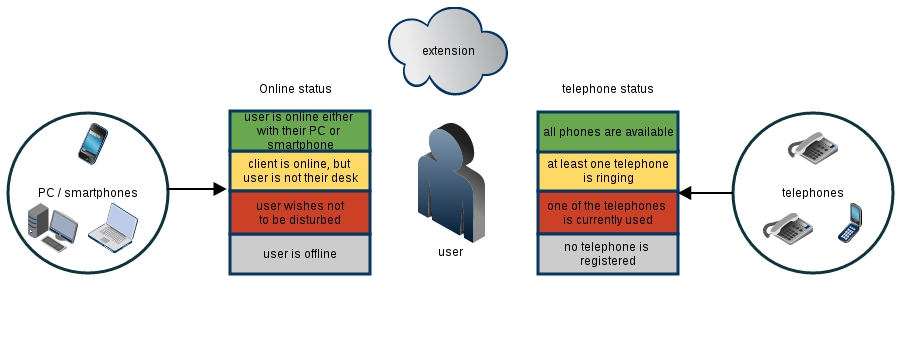
PASCOM user accounts represent **real people** and not devices. An extension is assigned to the user, not the telephone. Each user has 2 **presence statuses**:
* **Telephone status**: displays the user's telephone status, whether it is available, ringing or in call..
* **Online / app status**: displays a user's online status i.e. whether they are available, away or in DND. Also indicate in which location a user is logged in and whether they are on a PC or mobile device
If multiple devices are assigned to a user or they are using multiple PCs or smartphones at the same time, their presence states are aggregated.
## Directly Assigning Telephones to Users
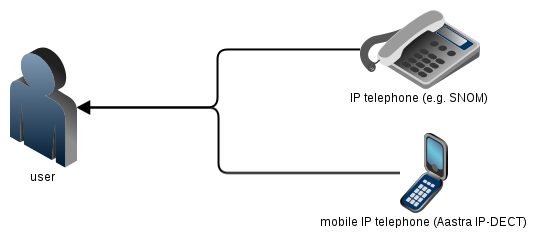
In the simplest scenario, telephones are directly assigned to users. All assigned devices can then be reached by dialing the user's extension. The order in which and for how long assigned user devices should ring is defined using the [FollowMe](#follow-me) settings.
This is the recommended option should users not switch workplaces in the office, as only the administrator can change telephone assignments and not the users themselves.
## Using Locations
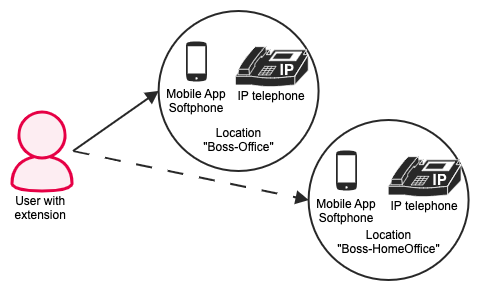
However, should you have users who regularly switch workplaces (hotdesking) or work from home office, it is best to assign telephones to **locations** instead of users. Phones can not only be assigned to a user, but also to a virtual location. Users can then use the PASCOM Desktop App, PASCOM Mobile App or the menus on their desktop IP phone to select the location they want to work from. As soon as a user has signed in to a location, all telephones assigned to that location will become reachable under the user's extension. The order in which & for how long the devices ring can be configured for the individual work location.
A user can only be logged into to a single location at any given time. In the default setting, every user can sign in to every location. If you do not want your users to sign in to arbitrary locations, you need to create restrictions using **roles**.
In the example below, we created two locations for the Manager, one location in their office, the other in their home office.
## Combining the "directly assigned" and the "location" concepts
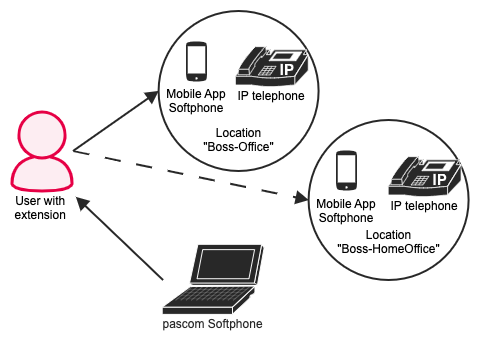
It is possible for a user to use simultaneously use a work location and directly assigned telephone, i.e. a mobile phone / device.
If users switches their location, the directly assigned user device is not affected and continues to be reachable.
---
# Agent Instructions
This documentation is published with GitBook. GitBook is the documentation platform designed so that both humans and AI agents can read, navigate, and reason over technical content effectively. Learn more at gitbook.com.
## Querying This Documentation
If you need additional information that is not directly available in this page, you can query the documentation dynamically by asking a question.
Perform an HTTP GET request on the following URL with the `ask` and `goal` query parameters:
```
GET https://docs.pascom.net/en/setup/user/user-concept.md?ask=&goal=
```
`ask` is the immediate question: it should be specific, self-contained, and written in natural language.
`goal` is what the user is ultimately trying to achieve, the reason they need the answer. Sharing it helps GitBook give you a better, more relevant answer. A goal is most helpful when it describes the outcome the user wants rather than restating the question. For example, with `ask=how do I create an API token`, a goal like `build a script that syncs our docs to a CMS` lets GitBook tailor the answer to that use case.
The response will contain a direct answer to the question and relevant excerpts and sources from the documentation.
Use this mechanism when the answer is not explicitly present in the current page, you need clarification or additional context, or you want to retrieve related documentation sections.