> For the complete documentation index, see [llms.txt](https://docs.pascom.net/llms.txt). Markdown versions of documentation pages are available by appending `.md` to page URLs; this page is available as [Markdown](https://docs.pascom.net/en/setup/endpoints/linekeys.md).
# Line Key Configuration (Global)
How to configure line keys of your hardware phones globally for all users.
## Overview
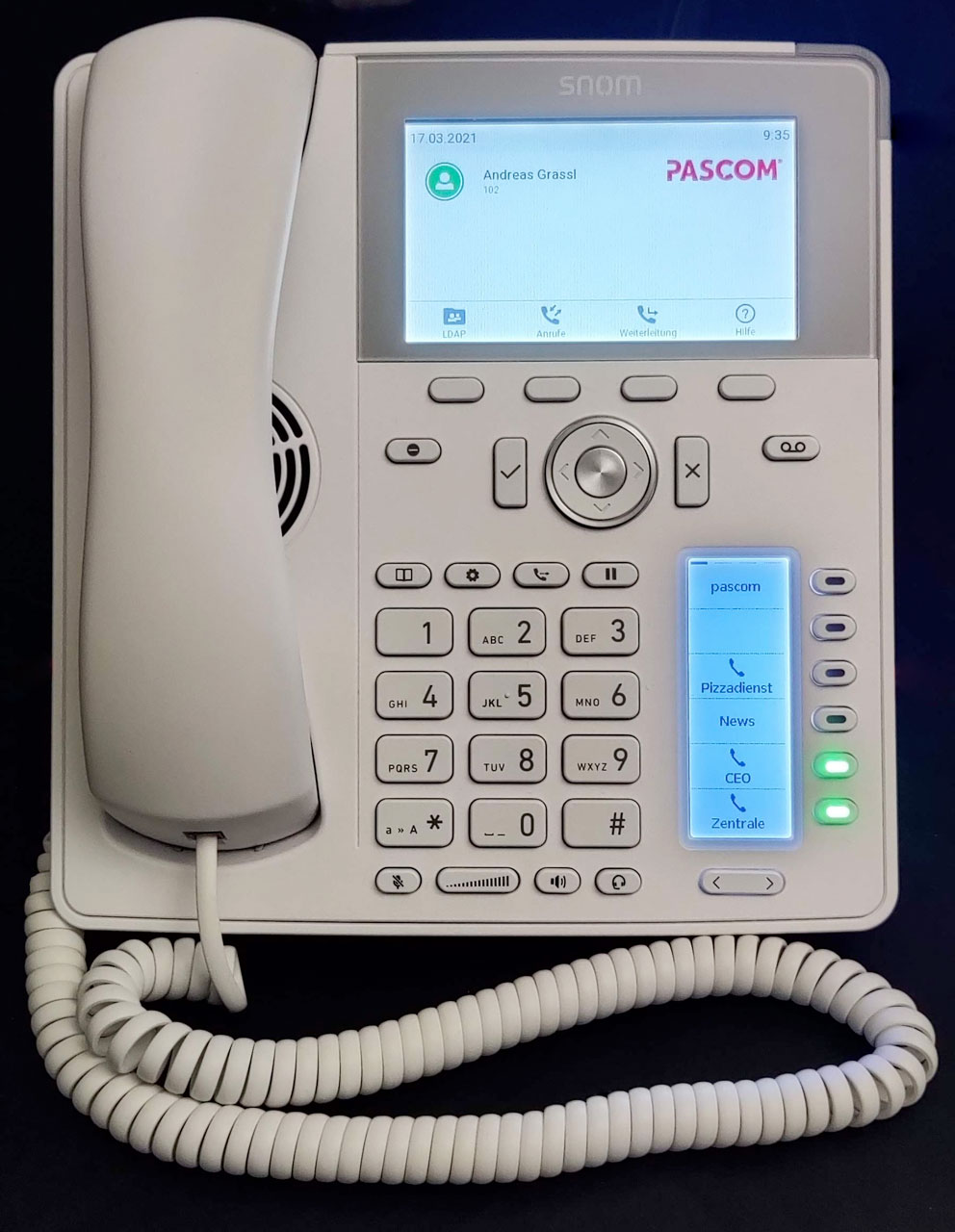
Line keys are the speed dial keys with busy lamp field (BLF) on hardware telephones. These keys can be configured and assigned as desired and display different LED colors depending on their status. In order to roll out the same line key assignment globally for all users, preparations must first be made.
### Preparate the Base Config
To make changes to a basic configuration, it must be duplicated. To do this, go to **Devices** > **Basic configuration** on the PASCOM WEB GUI. Duplicate the base configuration of the corresponding manufacturer and give it a new name, e.g. My SNOM devices.
## Line Key Configuration (Global)
Select the new duplicated base configuration and click on **Edit**.
### Base Data of the Base Configuration
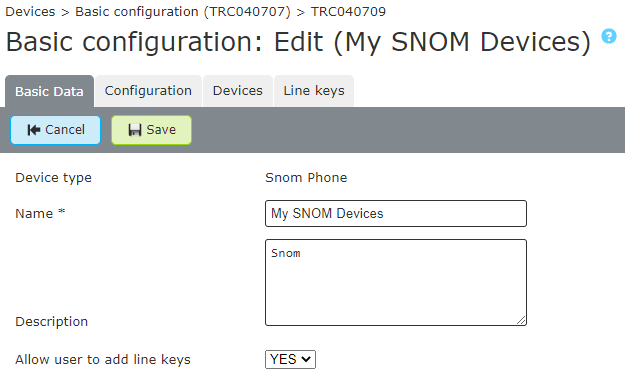
You can make the following settings in the basic settings of the basic config.
1. **Name**: Here you can edit the name of the **base configuration**.
2. **Description**: Enter an individual description for the base configuration.
3. **Allow User to add line keys**: Determine if users in this base configuration, are allowed to add their own **line keys** for their phones.
### Set Line Keys of the Base Configuration
To set the **line keys**, click on the **line keys** tab. In the figure below, you can find some line keys that are rolled out to all phones during provisioning.

### Line Key Explanation
1. **Configurable by user**: Sets whether a user is allowed to make changes to this **line key**. Here you can set **Yes** or **No**.
2. **Type**: Is the global Function of the **line key**.
In the following table you will find the explanations of the individual types of **line keys**.
| Typ | Example | Description |
| --------------- | --------------------------- | -------------------------------------------------------------------------------------------------------------- |
| PASCOM Menu | **PASCOM Menu** | Places the PASCOM menu on a **line key**. |
| Not used | **---** | Cannot have a name and value. This locks the line key and prevents it from being used (e.g. as a placeholder). |
| Any Number | **0991234556** or \***100** | Can contain any number. Works with **internal / external** numbers and with **function codes**. |
| Open Url | **test-url.de** | Opens a defined URL. |
| Contact List | **---** | Can contain a number from the contact list. Selection from **internal / external** contacts. |
| Team logon/-off | **Sales Queue** | Places a queue to which you can log in and log out |
Once you have finished setting up your **line keys**, click the **Save** Button. Alternatively, you can save the configuration right away with **Save and Sync**.
1. **Set Base Configuration as default**: In the **Overview** of the Base Configurations, you can set your newly created base configuration as **default** to automatically use the correct base configuration when provisioning the phones. Highlight the new base configuration and click **Set default**.
### Provisioning
In order for your phones to adopt the new base configuration, the phones must be re-provisioned. After this process is completed, the newly configured **line keys** will appear on the hardware phone.
## Wipe all hardware phone blf line keys when a user leaves a location
You have several users who share a location and each of them has their own blf line keys configured on the hardware telephone. If the users change, the line keys can be shared among them. If this behavior is not desired, the user-defined blf line keys can be deleted from the hardware telephone when the users log off from the workstation.
### Configure deletion of all BLF line keys
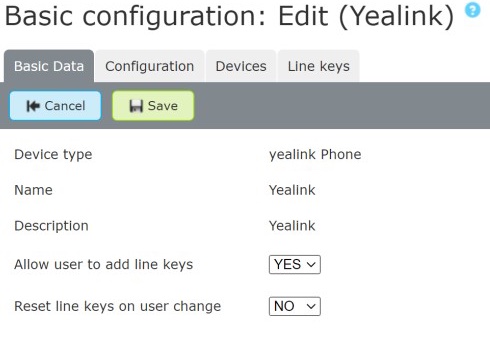
The configuration is done directly in the basic configuration of your hardware phone.
1. In the Admin UI, click on **Devices** > **Basic Configuration**.
2. Click on **Edit** and switch to the tab **Basic Data**.
3. There you will find the setting for removing the blf line keys.
## Useful Information
1. Is it possible to set the LED colors of the **Busy Lamp Field(BLF)** itself?
No, this is controlled automatically by the PASCOM telephone system, e.g. for busy users, active extension switches or whether one is logged on or off in a team.
---
# Agent Instructions
This documentation is published with GitBook. GitBook is the documentation platform designed so that both humans and AI agents can read, navigate, and reason over technical content effectively. Learn more at gitbook.com.
## Querying This Documentation
If you need additional information that is not directly available in this page, you can query the documentation dynamically by asking a question.
Perform an HTTP GET request on the following URL with the `ask` and `goal` query parameters:
```
GET https://docs.pascom.net/en/setup/endpoints/linekeys.md?ask=&goal=
```
`ask` is the immediate question: it should be specific, self-contained, and written in natural language.
`goal` is what the user is ultimately trying to achieve, the reason they need the answer. Sharing it helps GitBook give you a better, more relevant answer. A goal is most helpful when it describes the outcome the user wants rather than restating the question. For example, with `ask=how do I create an API token`, a goal like `build a script that syncs our docs to a CMS` lets GitBook tailor the answer to that use case.
The response will contain a direct answer to the question and relevant excerpts and sources from the documentation.
Use this mechanism when the answer is not explicitly present in the current page, you need clarification or additional context, or you want to retrieve related documentation sections.