> For the complete documentation index, see [llms.txt](https://docs.pascom.net/llms.txt). Markdown versions of documentation pages are available by appending `.md` to page URLs; this page is available as [Markdown](https://docs.pascom.net/en/setup/endpoints/doorbell.md).
# Generic Doorbell
How to integrate generic SIP door bells into the PASCOM telephone system
## Overview
The PASCOM telephone system offers the possibility to integrate generic door bells. For the integration, a few prerequisites must be met by the manufacturer.
### Requirements
To be able to operate a SIP door bell on the PASCOM server, the following requirements are necessary:
* **SIP via TCP/TLS** (encrypted signaling)
* **Outbound-Proxy** (Send data via session border controller)
## Door Bell Setup
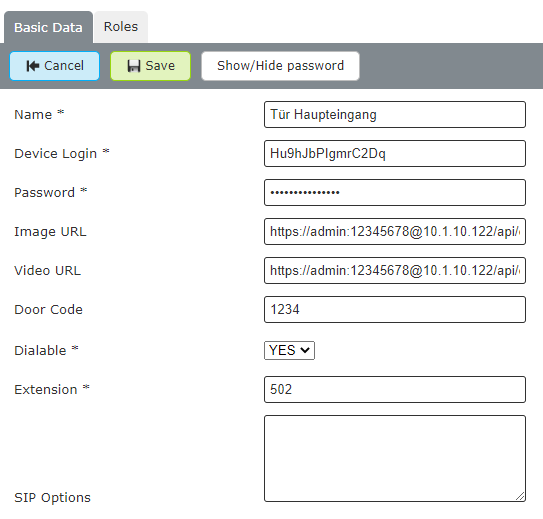
On the PASCOM admin web interface, go to **Devices** > **Device List** and click **Add**. In the next window select the template for **generic Doorbell**.
### Parameter for Setup
Fill in the predefined fields with your data.
| Field | Example Value | Description |
| ------------ | ----------------------------------------------- | ------------------------------------- |
| Name | **Frontdoor** | Name of the door bell |
| Device-Login | **XXXXXXXXXXX** | Login name is generated by **PASCOM** |
| Password | **XXXXXXX** | Password is generated by **PASCOM** |
| Image-URL | `https://user:password@1.2.3.4/jpg/image.jpg` | URL of the Image |
| Video-URL | `https://user:password@1.2.3.4/mjpg/video.mjpg` | URL of the video stream |
| Door Code | **1234** | DTMF Code to open the door |
| Dialable | **Yes** | Yes/No to call the door intercom |
| Extension | **503** | Internal extension of the door bell |
**Example**
## Door Bell Configuration
Below you will find an overview of door bells that have been tested by PASCOM during the implementation. In general, you can use any SIP-enabled door bell. The following URL addresses must be set up on the door bell itself and also on the PASCOM telephone system. For the configuration of the door bell, also have the manufacturer's documentation available as a useful aid.
### Base Technology
| Function | Protocol | Description |
| -------- | -------------------- | ----------- |
| Image | HTTP / HTTPS | JPEG/JPG |
| Video | HTTP / HTTPS / MJPEG | |
### Reference List
Here you can find some reference URLs, for the integration of the video and image functionality, which have already been tried out by PASCOM. **Please note** that the URL addresses are structured differently for each manufacturer.
*The manufacturers listed here are in no way intended to be a recommendation to buy.*
## Baudisch
| Typ | URL |
| --------------- | ----------------------------------------------- |
| MJPEG via HTTPS | `https://user:password@1.2.3.4/mjpg/video.mjpg` |
| JPG Image | `https://user:password@1.2.3.4/jpg/image.jpg` |
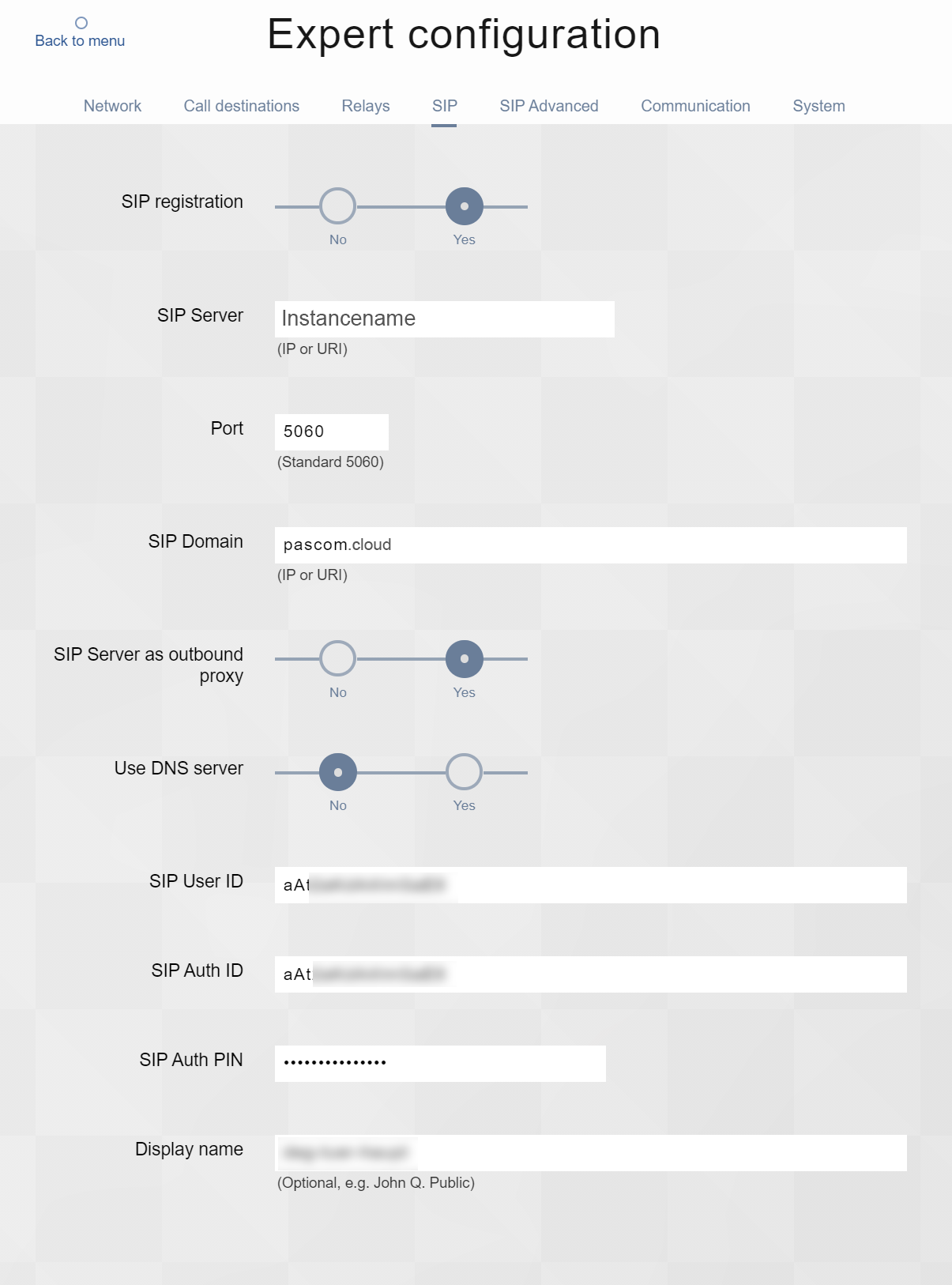
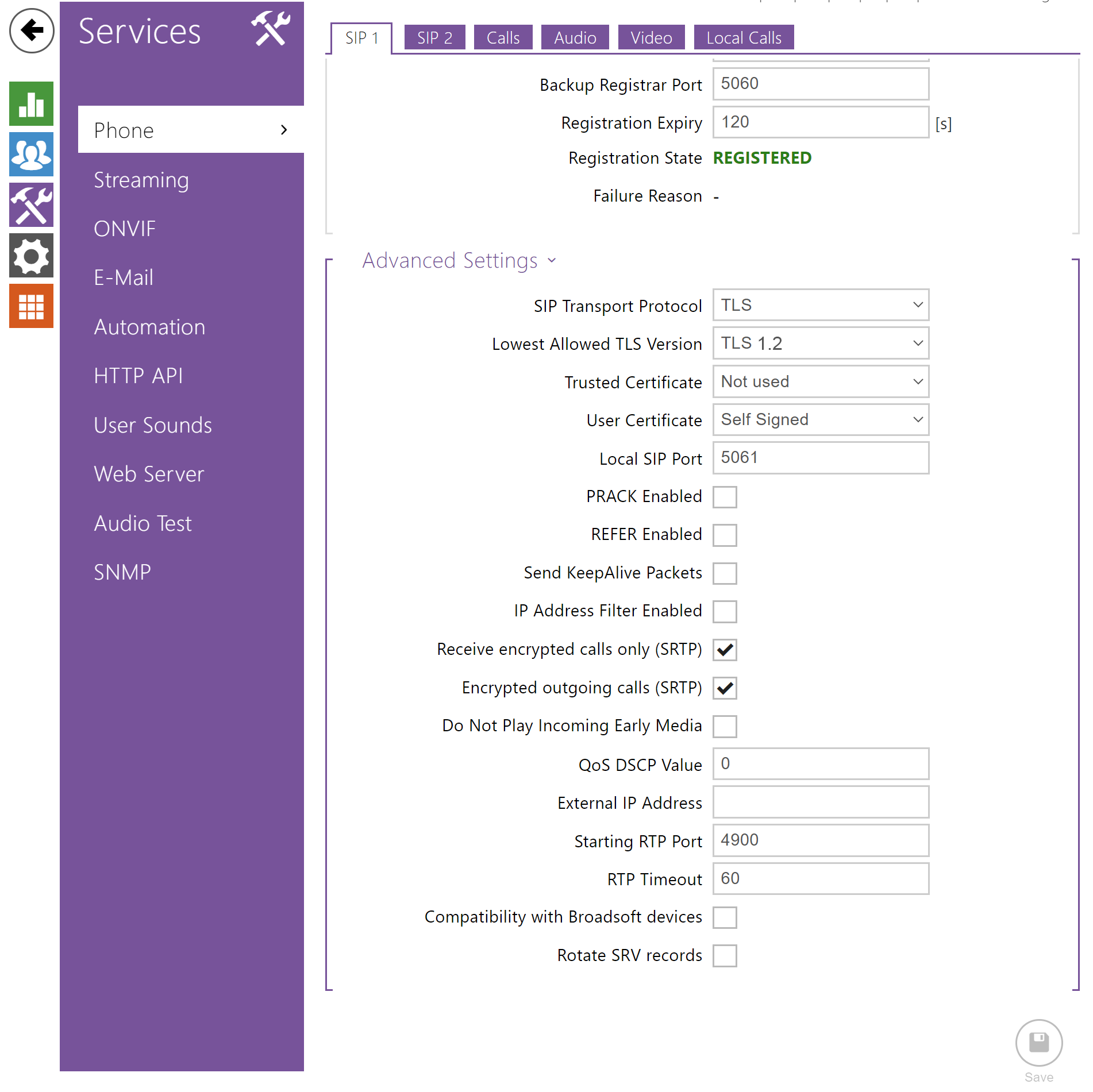
**SIP Configuration**
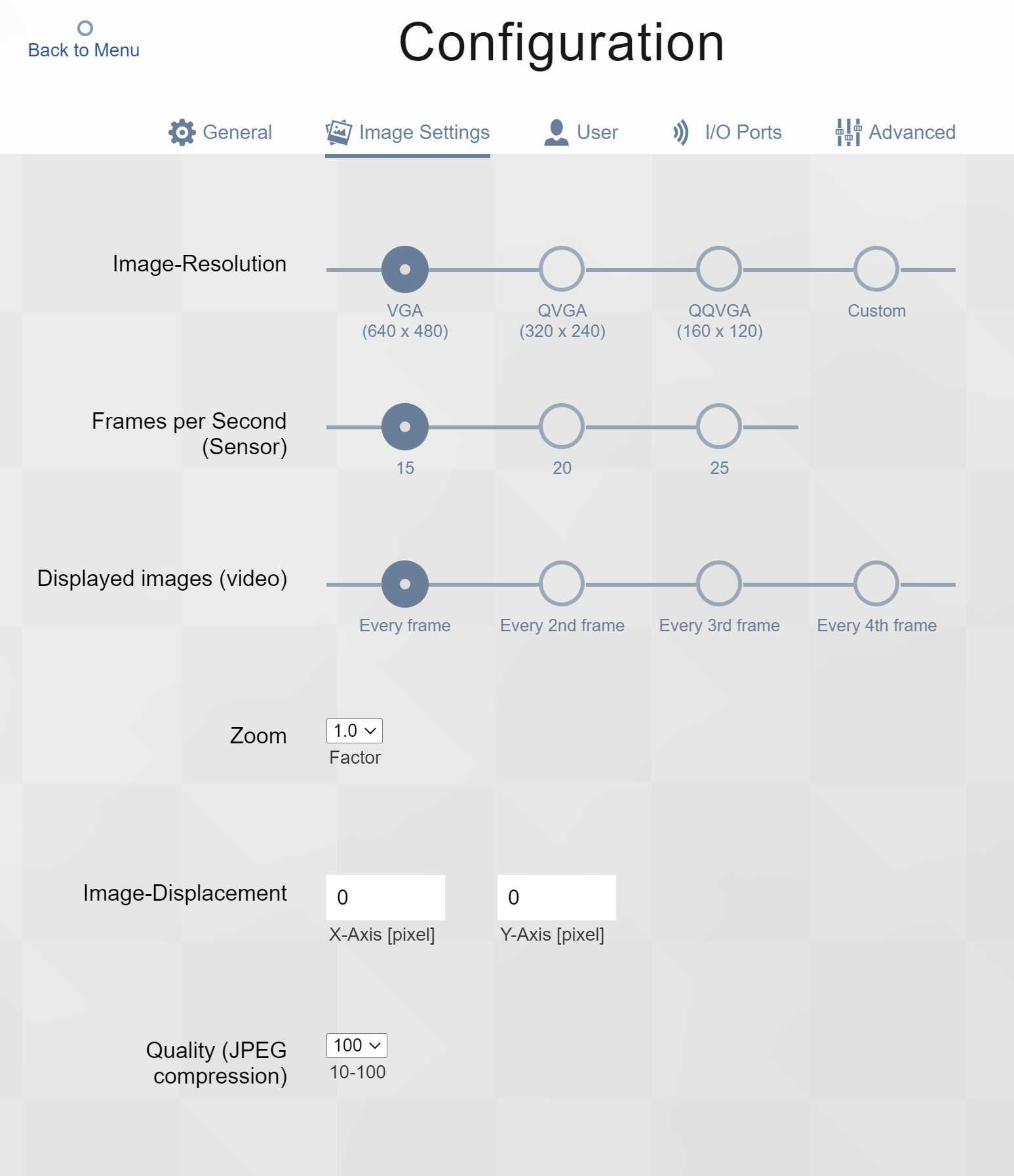
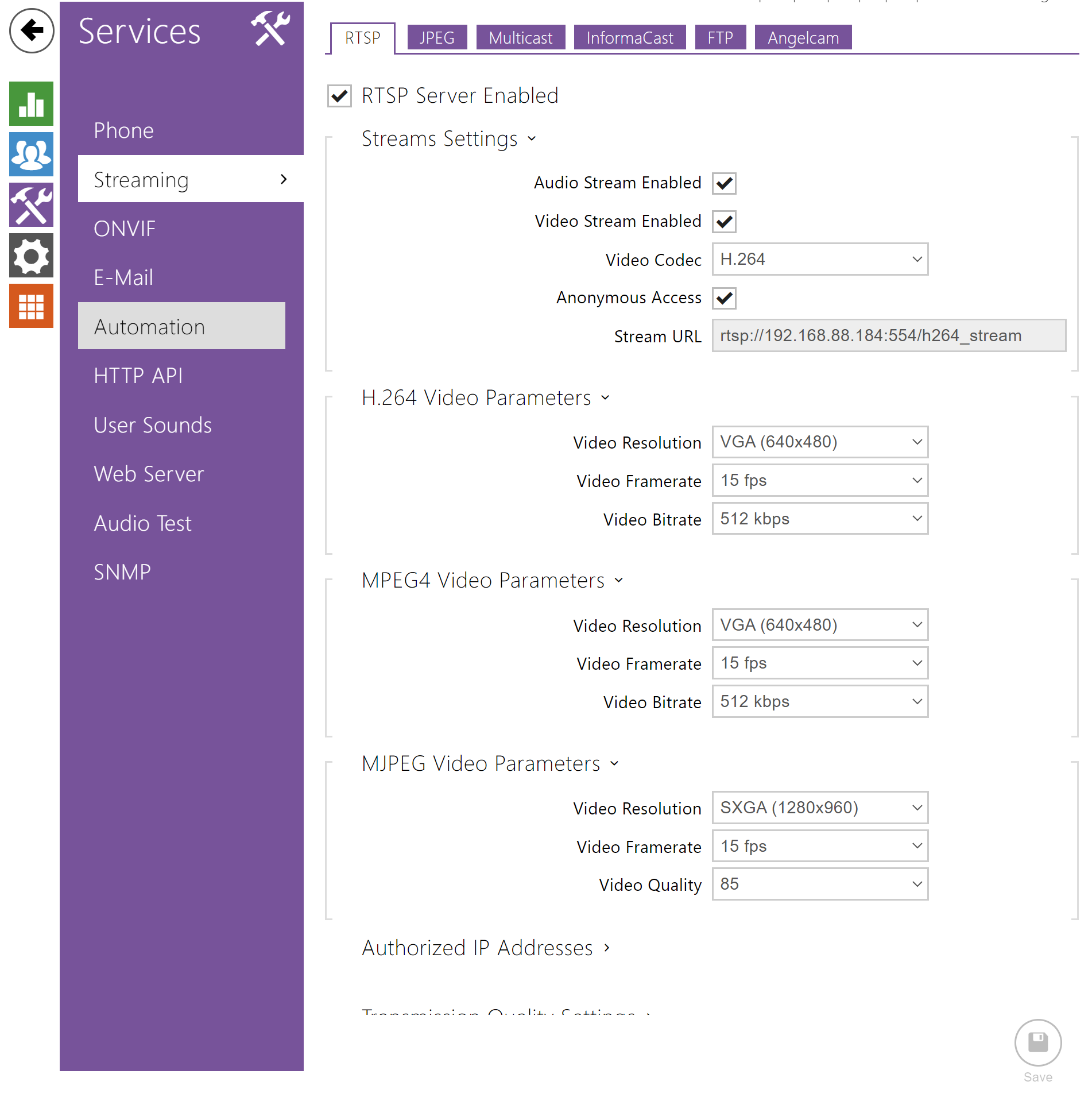
**Video Konfiguration**
Please note that additionally the opening of the door must be configured by DTMF code.
## 2N IP Base
| Typ | URL |
| ----------- | -------------------------------------------------------------------------------- |
| HTTPS Video | `https://admin:12345678@1.2.3.4/api/camera/snapshot?width=640&height=480&fps=15` |
| JPG Image | `https://admin:12345678@1.2.3.4/api/camera/snapshot?width=640&height=480` |
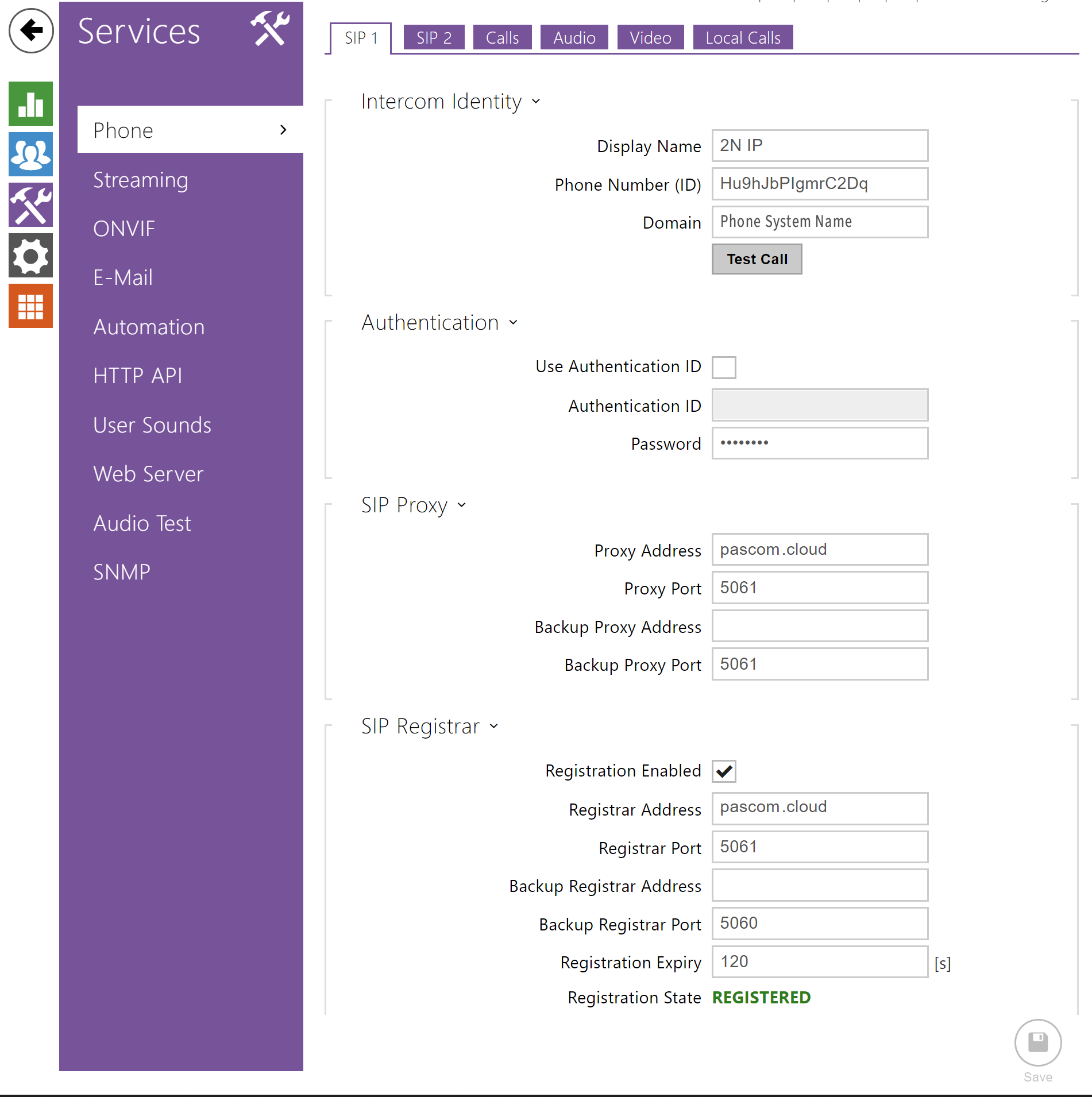
**SIP Configuration**
**Video Configuration**
Please note that additionally the opening of the door must be configured by DTMF code.
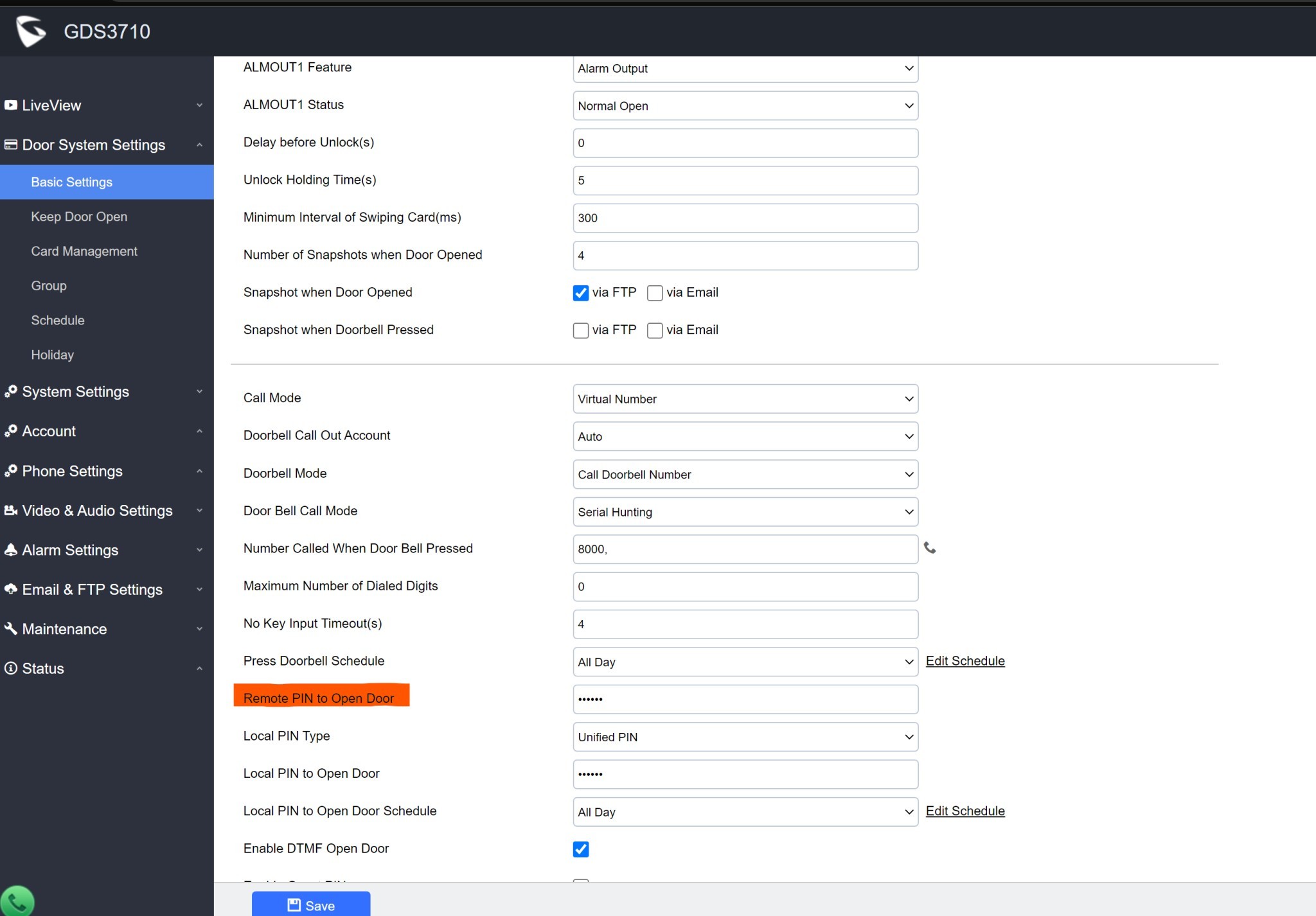
## Grandstream
| Typ | URL |
| ----------- | -------------------------------------------------- |
| HTTPS Video | `https://admin:password@1.2.3.4/jpeg/mjpeg.html` |
| JPG image | `https://admin:1234567@1.2.3.4/snapshot/view0.jpg` |
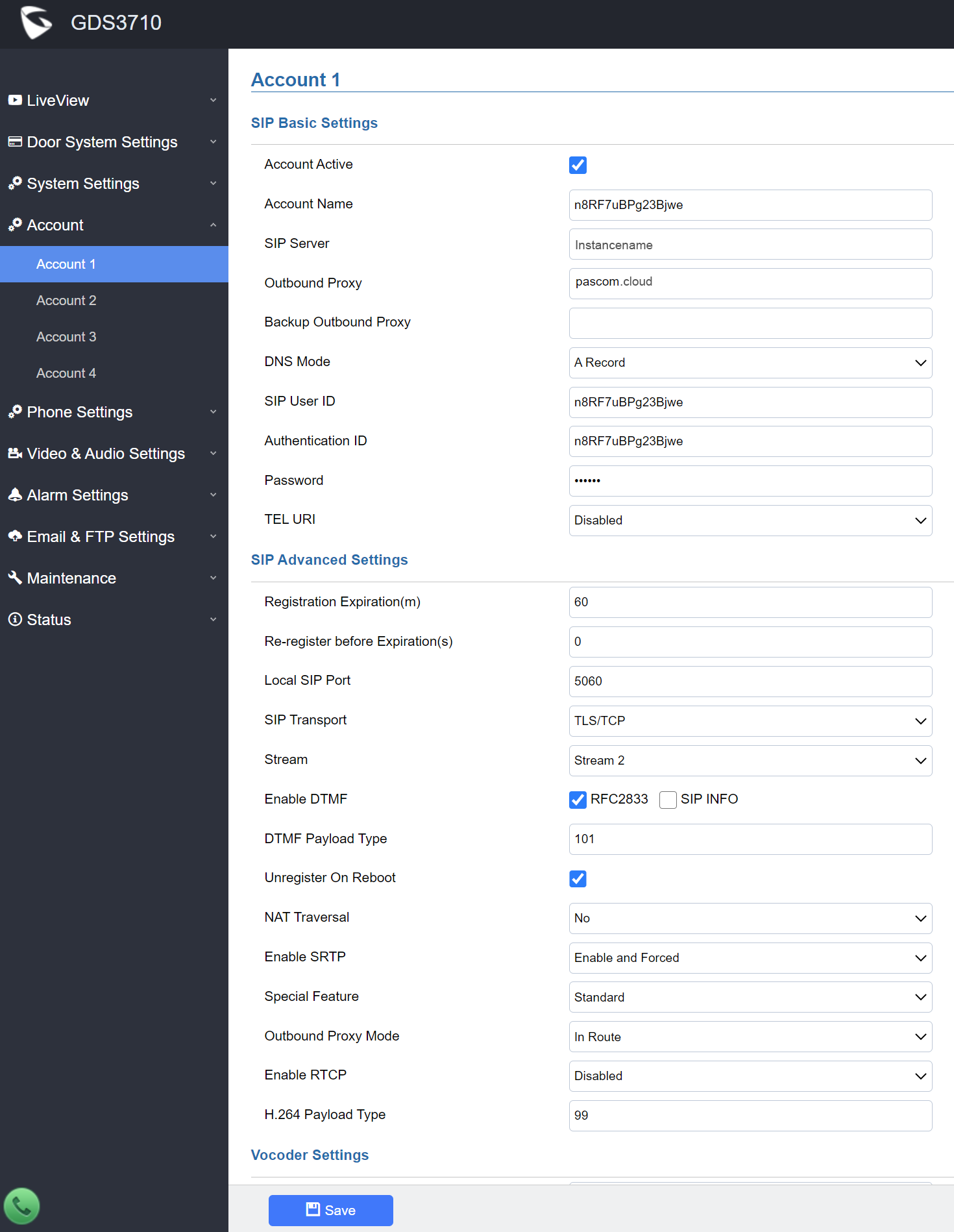
**SIP Configuration**
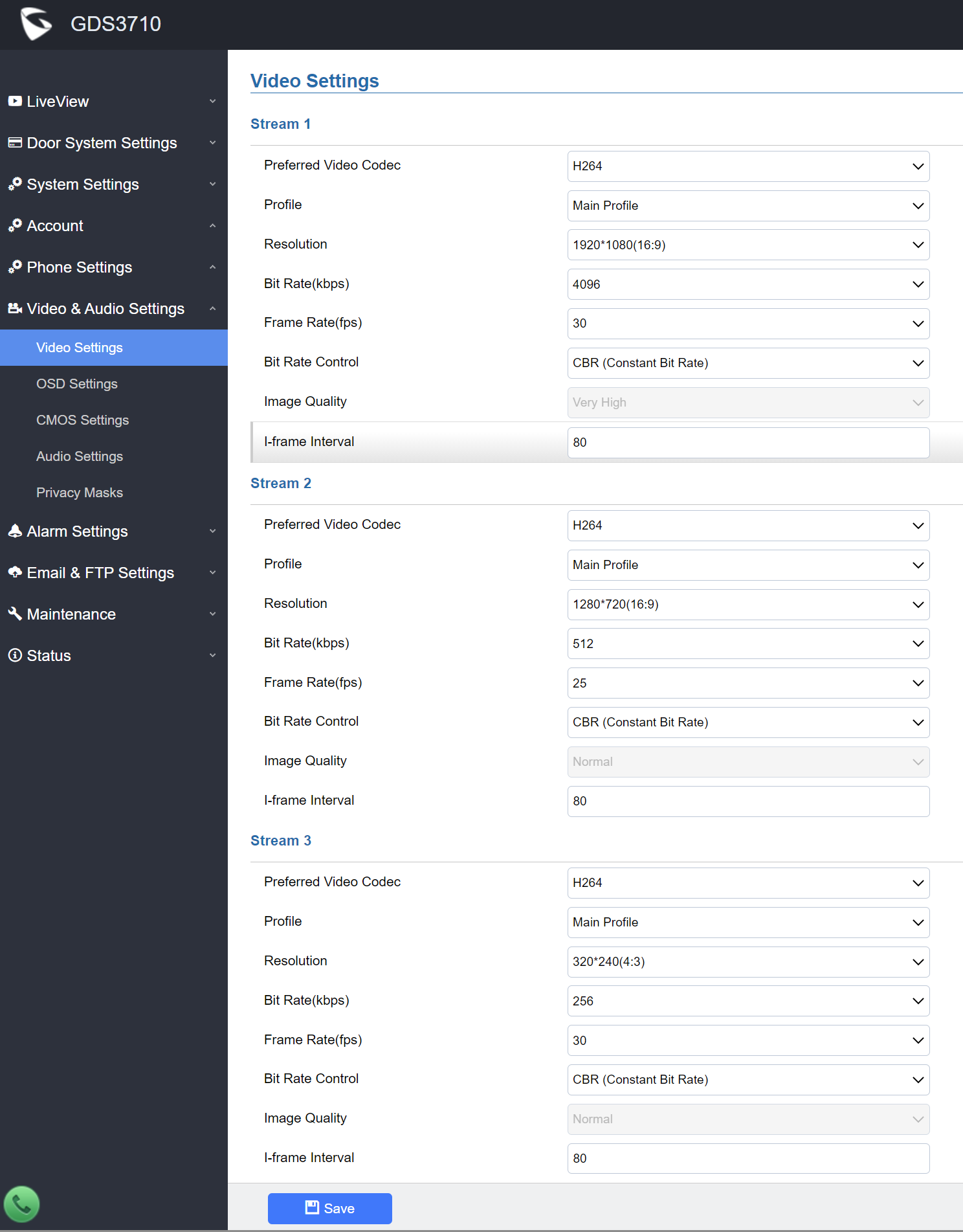
**Video Configuration**
Please note that additionally the opening of the door must be configured by DTMF code.
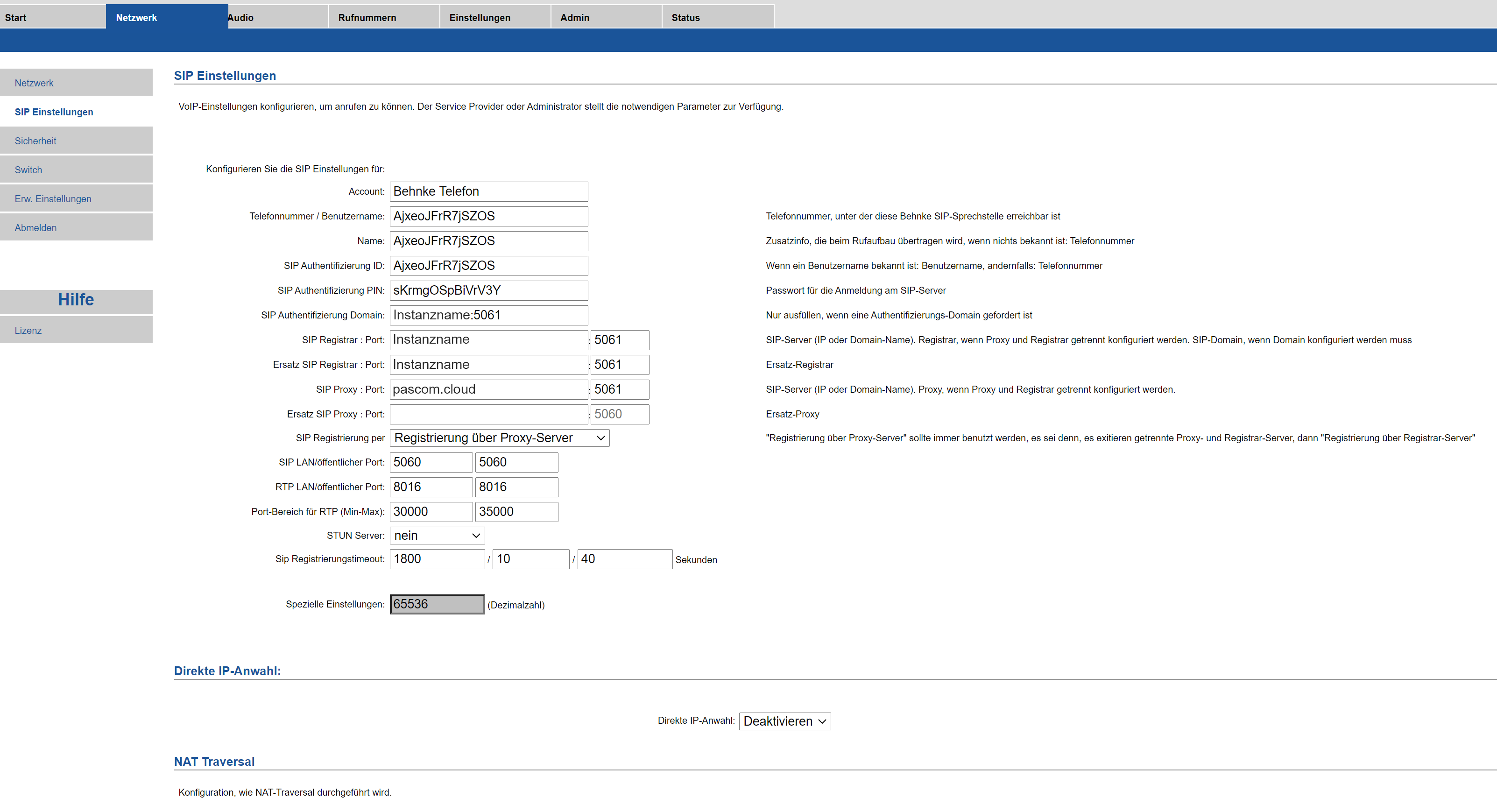
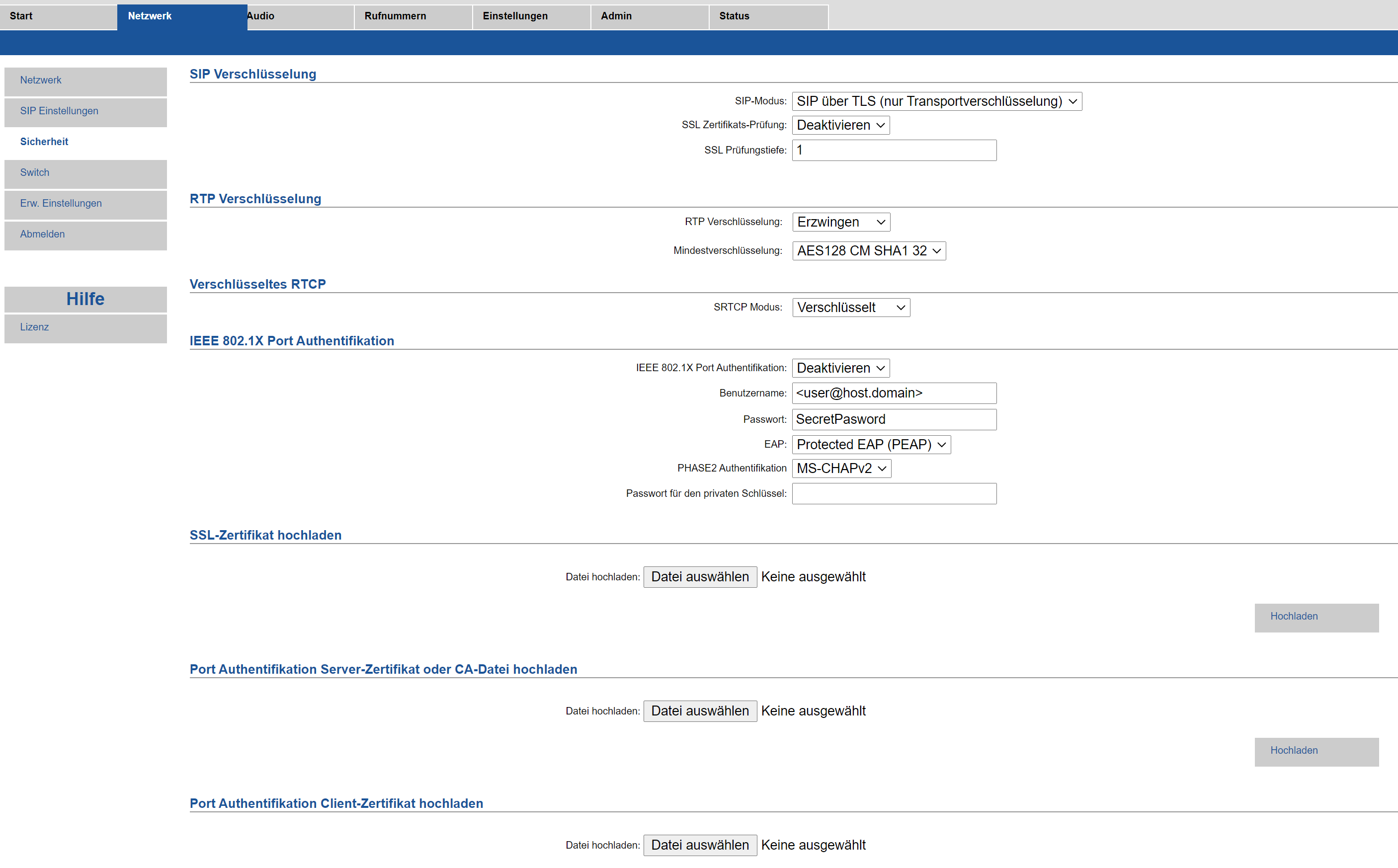
## Behnke
| Typ | URL |
| ----------- | --------------------------------------------------------- |
| HTTPS Video | `https://viewer:password@1.2.3.4/axis-cgi/mjpg/video.cgi` |
| JPG image | `https://viewer:password@1.2.3.4/axis-cgi/jpg/image.cgi` |
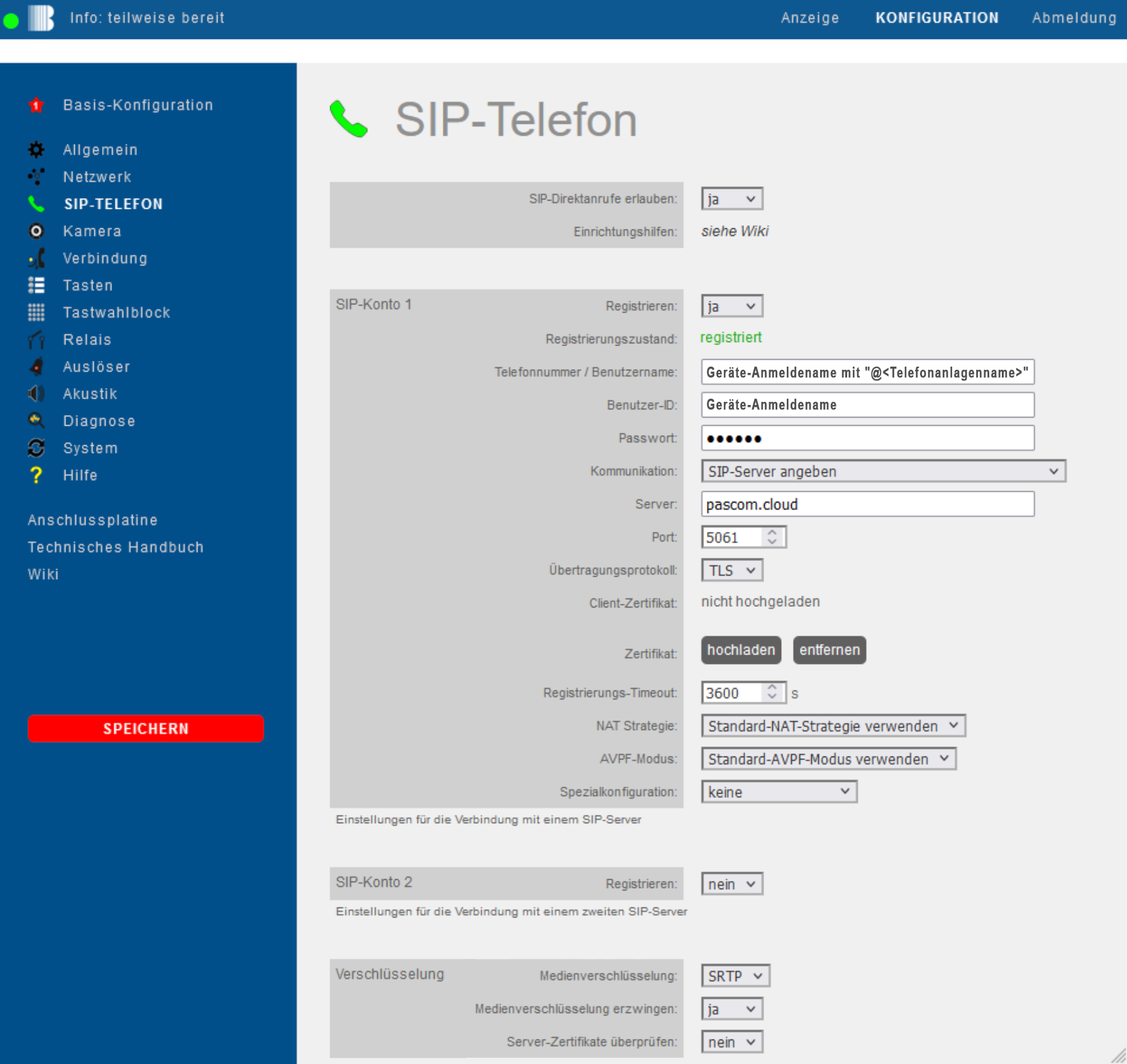
**SIP Configuration**
**New v.3 user interface**
| Behnke | Data |
| ------------------------- | --------------------------------------- |
| Phone number/Username | Device login name with "@instance name" |
| User-ID | Device login name |
| Password | Password |
| Server | pascom.cloud |
| Port | 5061 |
| Transferprotocol | TLS |
| Media encyrption | SRTP |
| Enforce media encryption | yes |
| Check server certificates | no |
**Video Configuration**
1. No Image available
Please note that additionally the opening of the door must be configured by DTMF code.
### Door Intercom usage
The door intercom establishes a normal call when the bell is pressed, which can be received via SIP/SRTP from anywhere. The PASCOM App does not have to be in the same network.
### Door opener usage
To open a door, the PASCOM App sends a DTMF code during the active call. The PASCOM App does not have to be in the same network and the door opener can be operated from anywhere.
### Useful Information
1. **Why do Iphone devices have a black image when streaming video?**
If the door bell delivers the image/video data via HTTPS with a self-signed certificate, no image may be displayed on iOS devices. This is an iOS security policy. To get a picture, either a trusted certificate must be installed or the door bell must be switched to HTTP.
---
# Agent Instructions
This documentation is published with GitBook. GitBook is the documentation platform designed so that both humans and AI agents can read, navigate, and reason over technical content effectively. Learn more at gitbook.com.
## Querying This Documentation
If you need additional information that is not directly available in this page, you can query the documentation dynamically by asking a question.
Perform an HTTP GET request on the following URL with the `ask` and `goal` query parameters:
```
GET https://docs.pascom.net/en/setup/endpoints/doorbell.md?ask=&goal=
```
`ask` is the immediate question: it should be specific, self-contained, and written in natural language.
`goal` is what the user is ultimately trying to achieve, the reason they need the answer. Sharing it helps GitBook give you a better, more relevant answer. A goal is most helpful when it describes the outcome the user wants rather than restating the question. For example, with `ask=how do I create an API token`, a goal like `build a script that syncs our docs to a CMS` lets GitBook tailor the answer to that use case.
The response will contain a direct answer to the question and relevant excerpts and sources from the documentation.
Use this mechanism when the answer is not explicitly present in the current page, you need clarification or additional context, or you want to retrieve related documentation sections.