> For the complete documentation index, see [llms.txt](https://docs.pascom.net/llms.txt). Markdown versions of documentation pages are available by appending `.md` to page URLs; this page is available as [Markdown](https://docs.pascom.net/en/setup/acd/conditions.md).
# Business Hours, Public Holidays and Calendars
How to setup schedules, time checks, calendars and extension switches to manage your business hours, public and company holidays.
## Concept
As mentioned in the previous section on the concept of actions, how you manage your call flows can be done in a number of ways depending on whether the calls are inbound calls to individual users or to teams. For inbound calls to the central office or to one of [your Contact Center](https://www.pascom.net/en/call-contact-center/) extensions, it makes sense to check whether the call is coming in during your business hours or whether the call is being received during a public or company holiday.
For this purpose, we use conditions. Conditions can be applied to each defined action and are used decide whether a particular action is performed or not. There is no global "Day/Night" system for managing calls, meaning you can integrate any number of calendars, time frames and triggers which can be used as conditions with the various objects within your phone system.
The benefit here is that this approach allows you to assign different opening hours, for example, for your central office and your support hotline. You could also use this approach to forward calls at certain times to "On Call" user mobile phones.
### Maintaining Rule Sequences
If, for example, you want to check business hours, public holidays and the vacation calendar for calls to the central office queue, be sure to follow the correct order when performing checks. Firstly check the vacations (company holidays) calendar, then check for any public holidays before finally checking the business hours. If otherwise, the following could occur:
If for example, you check for business hours first then the following could happen: a call comes in to the central office during business hours. The IVR system is activated and plays the following message:
*"Welcome at ChaosConsulting. Your call will be transferred to the next available agent."*
Now, the phone system will perform the calendar checks and may discover that today is actually a holiday and will therefore respond to the caller with the following message:
*"Due to the holiday, our company is closed today. Thank you for your call"*
and end the call.
Obviously, this is pretty embarrassing and will most not make a good impression on the customer - so make sure your time and calendar checks are set in the correct order.
## Configuration
### Managing your Time Checks
To use your **timeframes** as the basis of a rule set, select **"time period"** when creating an action condition.
In the PASCOM web interface, select **ACD** > **Action conditions** and click **Add** to create a new condition. You can also select an existing condition and use the **Edit** function.
When you create the new condition, select **time period** as type and enter a **title**.
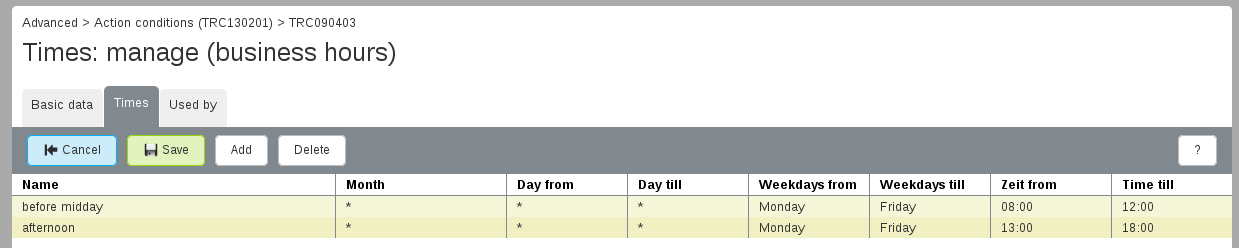
The tab **Times** allows you to define your business hours. You can add any number of variations to build complex schedules. You can then use these settings with your actions as the basis for the conditions.
{% hint style="success" %}
It is not necessary to create a time schema for outside of business hours; you can simply negate the conditions used in actions. When selecting a condition, you can always choose between "name of condition" and "NOT name of condition", e.g. "Business hours" and "NOT Business hours".
{% endhint %}
### Managing your Calendar
**Calendar** conditions are ideal for managing **public and company holiday** calendars.
Select **ACD** > **Action conditions** in the PASCOM web interface and click the **Add** button to create a new condition. You can also select an existing condition and click the **Edit** button.
When adding the condition, select **calendar** as the type and enter a **title**.
Using the **Days** tab you can select public holidays, vacations etc. You can then use this calendar with your actions.
{% hint style="info" %}
Unfortunately, it is not possible to transfer calendar days from one year to the next. You will need to newly define the days each year.
{% endhint %}
### Using Extension Switches
**Extension switches** are a useful tool if there is **no specific day or timeframe** to use with a condition.
Select **ACD** > **Action conditions** in the PASCOM web interface and click the **Add** button to create a new condition. You can also select an existing condition and click the **Edit** button.
When adding the condition, select extension switch as the type and enter a **title**.
Enter an extension number that should be used. The switch will be activated when a call is made to this extension. Another call will deactivate the switch again. The extension switch can be used as a condition for actions. Finally, decide which status the extension switch should have after creation. Switched on or off.
Extension switches can be used if, for example, you want to play a voice prompt such as "All staff members are currently in a meeting" as soon as there is an inbound call to the central office. Another scenario could be that you do not have regular business hours. When the last employee leaves the office, the message could be switched to indicate that the incoming call has been received "outside of business hours".
#### Using the extension switch in the PASCOM app
If you want to provide the extension switch directly to your team as an interactive element in the contact list, you have to set roles for the extension switch. Give some thoughts to which user with the **role xmpp.group** is allowed to interact with the extension switch.
1. more information on [roles](/en/setup/user/role.md).
2. use extension switch in the [PASCOM App](/en/user/pascom-app-userguide/extension-switch.md).
#### Set up extension switch via line key (BLF)
{% hint style="success" %}
You can configure your IP telephone so that it indicates an active extension switch with the LED of the key for the specified extension number. A deactivation of the switch will trigger the LED to go out.
{% endhint %}
In order to be able to use an extension switch on the telephone on a **line key**, this must be assigned to a user in a **user role**. The role does not need to contain any authorization.
1. more information on [roles](/en/setup/user/role.md).
---
# Agent Instructions
This documentation is published with GitBook. GitBook is the documentation platform designed so that both humans and AI agents can read, navigate, and reason over technical content effectively. Learn more at gitbook.com.
## Querying This Documentation
If you need additional information that is not directly available in this page, you can query the documentation dynamically by asking a question.
Perform an HTTP GET request on the following URL with the `ask` and `goal` query parameters:
```
GET https://docs.pascom.net/en/setup/acd/conditions.md?ask=&goal=
```
`ask` is the immediate question: it should be specific, self-contained, and written in natural language.
`goal` is what the user is ultimately trying to achieve, the reason they need the answer. Sharing it helps GitBook give you a better, more relevant answer. A goal is most helpful when it describes the outcome the user wants rather than restating the question. For example, with `ask=how do I create an API token`, a goal like `build a script that syncs our docs to a CMS` lets GitBook tailor the answer to that use case.
The response will contain a direct answer to the question and relevant excerpts and sources from the documentation.
Use this mechanism when the answer is not explicitly present in the current page, you need clarification or additional context, or you want to retrieve related documentation sections.