> For the complete documentation index, see [llms.txt](https://docs.pascom.net/llms.txt). Markdown versions of documentation pages are available by appending `.md` to page URLs; this page is available as [Markdown](https://docs.pascom.net/en/integrations/connector/user-microsoft-365-status.md).
# Microsoft 365 User Status Connector
This connector receives the user status from the Microsoft 365 world.
## Trainings Video
{% embed url="" %}
## Concept
With the MS365 status connector, it is possible to retrieve the user status from within the world of Microsoft 365. The status synchronisation is only available as a cloud-to-cloud synchronisation.
{% hint style="info" %}
In order for the user state synchronisation to be successful, the user must have the same username for both the PASCOM cloud phone system and the microsoft 365 world (**mmustermann\[at]6b73l7.onmicrosoft.com**).
{% endhint %}
To learn how to import users from Azure Active Directory, please click [here](/en/integrations/connector/user-microsoft-365.md).
## Microsoft Teams Integration - In-Call Status
A Microsoft 365 user is in on **Microsoft Teams** video meeting or call, their MS365 status is changed to **In-Call**. The PASCOM Microsoft 365 Status Connector enables the synchronisation of the In-call status with the **PASCOM user profiles**. Therefore, the presence status of a PASCOM user will automatically change to the **Teams Meeting** profile as soon as the user enters a Microsoft Teams meeting.
### Setup The Microsoft 365 Status Connector Profile
To setup the Microsoft 365 status connector, log into your PASCOM cloud phone system admin UI and follow the steps below:
1. Go to **Advanced**.
2. Select **Connector**.
3. Add a new connector via the menu item **Add**.
4. Select the **Microsoft 365 Status** connector template.
5. Enter a name for the connector, e.g. **Teams Integration**.
6. Click **Save**.

### Configure The Microsoft 365 Status Connector Profile
To configure the connector profile and enable the MS365 status synchronisation with the PASCOM apps and user profiles, the following settings need to be configured.
| Setting | Description |
| -------------------------------- | --------------------------------------------------------------------------------------------------------------------------------------------------------------------------------------------------------------------------- |
| **Title** | Connector profile name |
| **Source** | MSSTATUS - Microsoft 365 user status |
| **Sync Status** | **Enabled** per Default. Synchronisation can also be **disabled**. |
| **Profile during Teams meeting** | Choose a server-base PASCOM user profile which is linked to the Microsoft 365 Status Connector. As standard, a new **Teams Meeting** profile will be created, which can then be distributed to users using roles as normal. |
| **Authenticate** | Connect to your Microsoft account to authenticate the cloud to cloud connection. |
### Microsoft Account Authentication
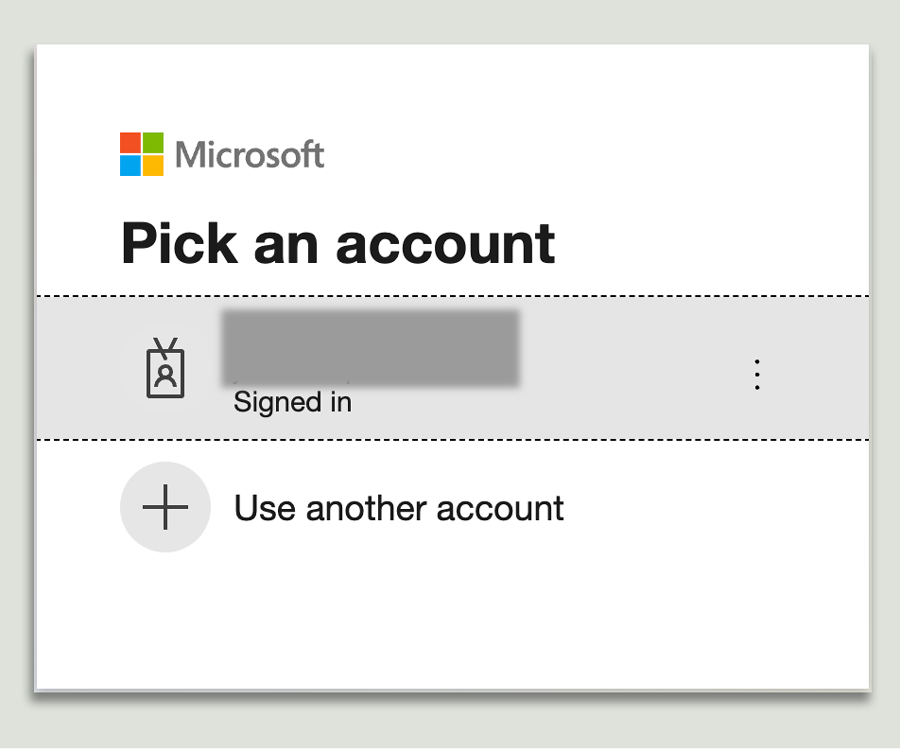
In order for the PASCOM Connector to import your Microsoft Office 365 contacts data, you must first authenticate yourself using your Microsoft account. To do this, use the **"click here"** link in the "Authenticate" settings option. This will redirect you to the Microsoft login screen.
Finally, you must confirm your authorisation in order to allow the PASCOM cloud phone system access to your MS365 contacts. Once done, you will successfully connected your PASCOM cloud phone system and Microsoft 365 environments.
#### Further customize Microsoft 365 Status Connector
In the **Variables** tab, you can set a more flexible MSSTATUS user matching, which allows the use of different AD account names.
* UserPrincipalName (default: Entra Id)
* SamAccountName
* mailNickname
To do this, simply change the comment parameters (#) at the desired piece of code.

#### The Teams Meeting User Profile
During the Microsoft Status connector set up, a new server-based **Teams Meeting** profile will have been created.
{% hint style="info" %}
As standard, the **Teams Meeting** profile is a **sticky profile** and cannot be overridden by e.g. automatically timed profiles. However, you can create your own server-based Teams Meeting profile and link it to the status connector.
{% endhint %}
For more information about how the **Teams Meeting profile** works and which **trigger** is used, please refer to the [user profiles guide](/en/setup/user/client-profiles.md).
#### User Status Synchronisation
It normally takes between **05 and 10 seconds** for the PASCOM app to automatically switch the user's status profile to **Teams Meeting** once a user starts a **Microsoft Teams** meeting (audio or video call). Microsoft does offer guaranteed response time, which can take up to 1 minute.
Once the user states have been synchronised, the user will not be able to receive any calls via the PASCOM apps for the duration of their Teams Meeting. Once the meeting has finished and the user has disconnected from the session, the status sync will automatically switch the user profile back last enabled **user profile**.
---
# Agent Instructions
This documentation is published with GitBook. GitBook is the documentation platform designed so that both humans and AI agents can read, navigate, and reason over technical content effectively. Learn more at gitbook.com.
## Querying This Documentation
If you need additional information that is not directly available in this page, you can query the documentation dynamically by asking a question.
Perform an HTTP GET request on the following URL with the `ask` and `goal` query parameters:
```
GET https://docs.pascom.net/en/integrations/connector/user-microsoft-365-status.md?ask=&goal=
```
`ask` is the immediate question: it should be specific, self-contained, and written in natural language.
`goal` is what the user is ultimately trying to achieve, the reason they need the answer. Sharing it helps GitBook give you a better, more relevant answer. A goal is most helpful when it describes the outcome the user wants rather than restating the question. For example, with `ask=how do I create an API token`, a goal like `build a script that syncs our docs to a CMS` lets GitBook tailor the answer to that use case.
The response will contain a direct answer to the question and relevant excerpts and sources from the documentation.
Use this mechanism when the answer is not explicitly present in the current page, you need clarification or additional context, or you want to retrieve related documentation sections.