> For the complete documentation index, see [llms.txt](https://docs.pascom.net/llms.txt). Markdown versions of documentation pages are available by appending `.md` to page URLs; this page is available as [Markdown](https://docs.pascom.net/en/integrations/connector/user-microsoft-365.md).
# Users from Microsoft 365
This connector imports users from the Microsoft 365 / Microsoft Azure world via the Entra ID.
The PASCOM telephone system supports the import of users from the Microsoft 365 environment via Entra ID. Through integration with our connectors, users can be automatically synchronized from Microsoft 365 and imported to the telephone system. This simplifies administration, reduces manual effort and ensures that user information is always up to date. In addition, users can use **Single Sign On** to log in to the PASCOM app with their Microsoft account.
### Set up Microsoft 365 user import
Log in to the Admin UI of the PASCOM Cloud Telephone System. Follow the steps below to set up a Microsoft 365 Connector.
1. Go to **Settings**.
2. Select **Connector**.
3. Add a new connector via the menu item **Add**.
4. Select the **Microsoft 365 User** connector template.
5. Enter a name for the connector.
6. Create a softphone and mobile device for the users at the same time.
7. Click **Save**.
{% hint style="info" %}
The PASCOM Microsoft 365 user connector can currently import a maximum of 650 users (CUs). This is due to a technical limitation in the Microsoft Graph API, not PASCOM itself.
{% endhint %}
### Set up microsoft 365 user connector profile
In this section, you configure the connector to set the import of users according to your wishes.
| Setting | Description |
| ---------------- | --------------------------------------------------------------------------------------------------------------------------------------------------------------------------------------------------------------------------------------------------------------------------------------------------------------------------------------------------------- |
| **Title** | Name of the Connector |
| **Source** | MSUSER - User from Microsoft 365 |
| **Automation** | Automate your connector at adjustable intervals |
| **Mode** |
Create and update users. Remove missing users from previous imports.: (default setting) Imports only new user entries and compares updated entries, old user entries will be removed. Create and update users: Imports only new user entries and compares updated entries. No users will be removed.
|
| **Authenticate** | Connect to your Microsoft account to authenticate the cloud to cloud connection. |
| **Company name** | Is automatically taken from the Microsoft world |
| **Filter group** | Filter by user e.g. from a “Sales” group |

#### Authentication with Microsoft account
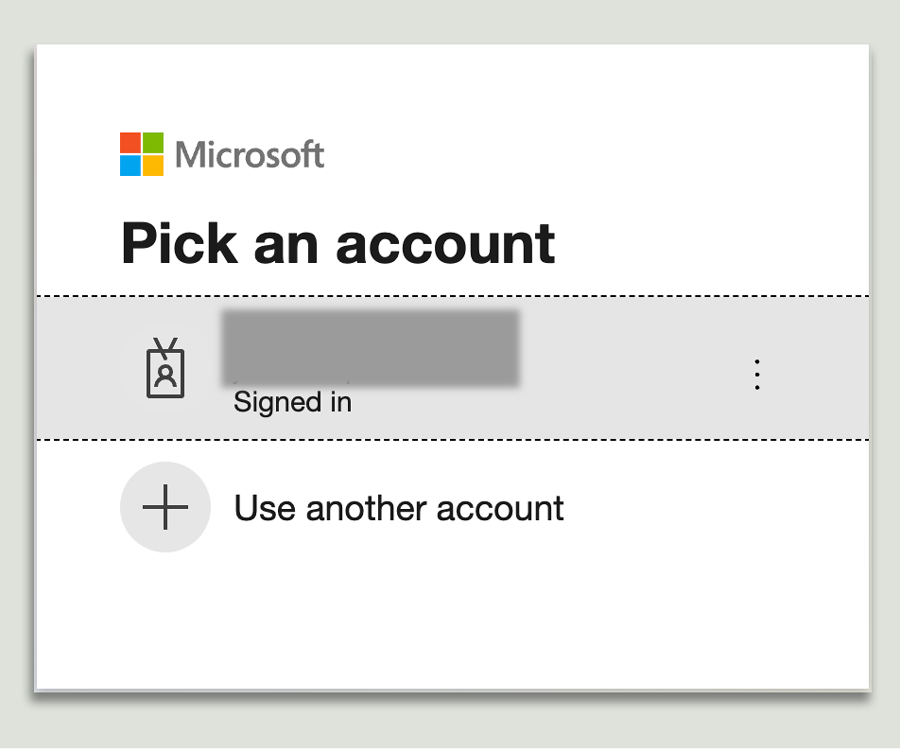
In order for the PASCOM cloud telephone system to successfully connect to the Microsoft 365 world, you need a user who has **administrator permissions**.
{% hint style="success" %}
If you would like to connect more than one PASCOM cloud telephone system to the same Microsoft organisation, you will need different Microsoft users for authentication for each telephone system.
{% endhint %}
{% hint style="info" %}
Administrator rights are required for the following accesses: *Read user profile and profiles of all users, read presence information of all users of the organization.* Therefore, authentication is not possible without administrator permissions.
{% endhint %}
In the next step, confirm the authorization to give the PASCOM telephone system access to your users. The PASCOM telephone system is now successfully connected to your Microsoft 365 account and can synchronize with your Microsoft users.
### Automatic setting for single sign-on of users
After a successful import, the connector takes over the necessary settings for the **Single Sign On** on the user. It is good to know that the **login name** of the PASCOM user must correspond to the **Entra ID** of the Microsoft user.
Example:
| PASCOM User | Microsoft User |
| ------------------------------------------------------- | ----------------------------------------------------- |
| **login name**: mmustermann\[at]contoso.onmicrosoft.com | **Entra ID**: mmustermann\[at]contoso.onmicrosoft.com |
In addition, the **Authentication** of the PASCOM user is set to **Single Sign On**. Further information can be found in this [tutorial](/en/setup/user/user.md).
The PASCOM user can now log in to the **PASCOM app** and the **Admin Dashboard** with their **Microsoft account**. In addition, the user can also be created on several telephone systems with the same credentials.
### Update existing users with the Microsoft Entra ID
If users already exist in the PASCOM telephone system, they can be easily updated via the Microsoft 365 user connector. The existing login names are automatically adapted so that they are compatible with Entra ID. The comparison is carried out using various attributes from Microsoft 365 and the PASCOM telephone system in order to correctly identify and update existing users.
* Example: You have the PASCOM user **mmustermann** and a Microsoft user **mmustermann\[at]contoso.onmicrosoft.com.** After the import has been executed, the **login name** of the PASCOM user is renamed to **mmustermann\[at]contoso.onmicrosoft.com**. This also happens if the login name does not match, but the Entra ID has already been stored as an e-mail for the PASCOM user.
{% hint style="warning" %}
When updating existing PASCOM users with the Microsoft Entra ID, the **current mobile pairing** of the users will be removed the next time the PASCOM app is restarted (can also be triggered via Session Management). After the import, users must pair their mobile device with the PASCOM app again.
{% endhint %}
{% hint style="warning" %}
If you are importing users from Microsoft 365 via Entra ID into PASCOM for the first time and have previously used the Microsoft Status Connector, you must switch it to Entra ID and reconfigure it. Only then will the Teams status synchronization work again.
{% endhint %}
Here you will find the instructions for [Session Management](/en/operations/clients.md).
---
# Agent Instructions
This documentation is published with GitBook. GitBook is the documentation platform designed so that both humans and AI agents can read, navigate, and reason over technical content effectively. Learn more at gitbook.com.
## Querying This Documentation
If you need additional information that is not directly available in this page, you can query the documentation dynamically by asking a question.
Perform an HTTP GET request on the following URL with the `ask` and `goal` query parameters:
```
GET https://docs.pascom.net/en/integrations/connector/user-microsoft-365.md?ask=&goal=
```
`ask` is the immediate question: it should be specific, self-contained, and written in natural language.
`goal` is what the user is ultimately trying to achieve, the reason they need the answer. Sharing it helps GitBook give you a better, more relevant answer. A goal is most helpful when it describes the outcome the user wants rather than restating the question. For example, with `ask=how do I create an API token`, a goal like `build a script that syncs our docs to a CMS` lets GitBook tailor the answer to that use case.
The response will contain a direct answer to the question and relevant excerpts and sources from the documentation.
Use this mechanism when the answer is not explicitly present in the current page, you need clarification or additional context, or you want to retrieve related documentation sections.