> For the complete documentation index, see [llms.txt](https://docs.pascom.net/llms.txt). Markdown versions of documentation pages are available by appending `.md` to page URLs; this page is available as [Markdown](https://docs.pascom.net/en/integrations/connector/user-azure.md).
# Users from Azure Active Directory (aadds)
Synchronize and authenticate your users against the Microsoft Azure Active Directory Service
## About Azure Active Directory Domain Services (aadds)
This is a "classic" domain server as a cloud service hosted in Azure. It is "coupled" with the Azure AD and automatically synchronizes users.
This service can be used to create classic domain server implementations in Azure and can be coupled with an on-premise domain in various ways.
It is also the component required to extend an Azure AD with public LDAPS access, which is useful for connecting legacy applications to the Azure cloud.
[More Informations about Microsoft aadds](https://techcommunity.microsoft.com/t5/apps-on-azure/let-s-talk-about-azure-active-directory-and-the-microsoft/ba-p/1571939)
## Aadds Setup
The current AD connector does not work against an Azure AD, instead an Azure Active Directory Domain Services installation with activated LDAPS access is required.
For setting up Aadds, the [official documentation](https://docs.microsoft.com/en-us/azure/active-directory-domain-services/tutorial-create-instance) can be used, also for LDAPS configuration.
## "Users from AD" Connector Profile
Create a new connector profile by using the following steps in the PASCOM cloud phone system Web UI: Click on the menu option **Settings** > **Connector** and then click **Add**.
Select the *AD User Sync* template and enter the following data:
| Field | Description |
| ----------------------------- | --------------------------------------------------------------------------------------------------------------------------------------------------------------------------------------------------------------------------------------------------------------------------------------------------------------------------------------------------------------------------------------------------------------------------------------- |
| **Name** | Connector Profile Name |
| **AD Domain** | Domain Name |
| **AD Server** | Domain Name |
| **Username** and **Password** | Credentials of the previously added PASCOM User for authentication |
| **Configure authentication** |
NO: Users will only be imported. Authentication will be performed by the PASCOM cloud phone system. YES: Users will be imported and the can be authenticated against the AD. In this case, the authentification will be setup and you can modify this according to your needs under Appliance > Services under the tab Authentification.
|
| **Create PASCOM softphone** | **YES**: Creates a PASCOM softphone for every imported user. **NO**: No PASCOM softphones will be added for imported users. |
| **Create mobile phone** | **YES**: Creates a mobile phone device for every imported user. **NO**: No mobile devices will be added for imported users. |
After saving, the template can be modified according to requirements under the tab **Basic Data**.
### Test and Activate the Import Process
After you have finalised your configuration, you can test the connector profile to determine which data sets will be imported using the **Save and Simulate** button. Once you are satisfied with the results, it is possible to either perform a one off import using the **Action** > **Import Now** option or automate the import to be performed at regular intervals by clicking the **Automate** button.
{% hint style="warning" %}
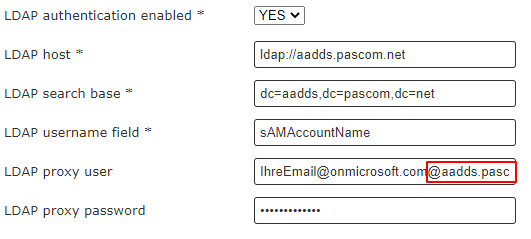
Please delete the domain name after the username. The System will do that behavior automatically after saving the connector profile.
{% endhint %}
### Authentication Tests
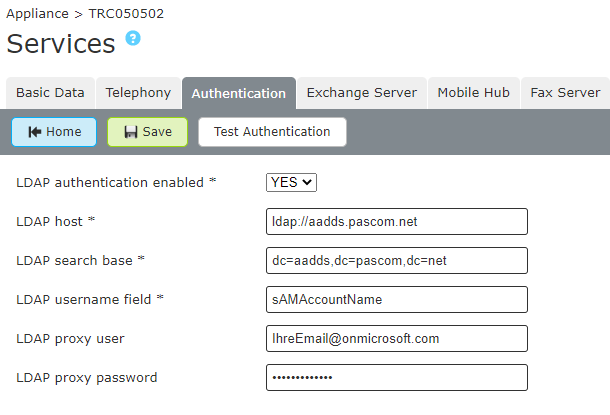
If you have configured the template using the *Configure authentication* *YES* option, it is now possible to test the user authentication process using the following menu options **Appliance** > **Services** under the **Authentification** tab and finally using the **Test Authentication** button.
The parameters for authentication are as follows.
| Field | Description |
| --------------------------- | ---------------------------- |
| LDAP-Authentication enabled | ja |
| LDAP Host | ldap\://aadds.yourDomain.de |
| LDAP Search Base | DC=aadds,DC=ihreDomain,DC=de |
| LDAP Username - Field | sAMAccountName |
| LDAP Proxy-User | |
| LDAP Proxy-Password | Ihr Passwort |
{% hint style="info" %}
To authenticate the user against the Azure AD, the user must have the same name on the PASCOM telephone system as in the Azure AD (sAMAccountName)
{% endhint %}
---
# Agent Instructions
This documentation is published with GitBook. GitBook is the documentation platform designed so that both humans and AI agents can read, navigate, and reason over technical content effectively. Learn more at gitbook.com.
## Querying This Documentation
If you need additional information that is not directly available in this page, you can query the documentation dynamically by asking a question.
Perform an HTTP GET request on the following URL with the `ask` and `goal` query parameters:
```
GET https://docs.pascom.net/en/integrations/connector/user-azure.md?ask=&goal=
```
`ask` is the immediate question: it should be specific, self-contained, and written in natural language.
`goal` is what the user is ultimately trying to achieve, the reason they need the answer. Sharing it helps GitBook give you a better, more relevant answer. A goal is most helpful when it describes the outcome the user wants rather than restating the question. For example, with `ask=how do I create an API token`, a goal like `build a script that syncs our docs to a CMS` lets GitBook tailor the answer to that use case.
The response will contain a direct answer to the question and relevant excerpts and sources from the documentation.
Use this mechanism when the answer is not explicitly present in the current page, you need clarification or additional context, or you want to retrieve related documentation sections.