> For the complete documentation index, see [llms.txt](https://docs.pascom.net/llms.txt). Markdown versions of documentation pages are available by appending `.md` to page URLs; this page is available as [Markdown](https://docs.pascom.net/en/account/mypascom-userguide/pascom-support.md).
# PASCOM Support & Ticket System
Find out how to get help from our qualified and experienced support team.
Should you ever reach a point where it is not possible to make progress without expert assistance, you can fall back on our qualified support team. Communication with PASCOM support takes place via our own ticket system, which is integrated into the myPASCOM portal. This ticket system is available to all PASCOM customers who have an active subscription.
{% hint style="info" %}
If you are currently in the trial phase with the PASCOM Cloud phone system, you will receive support from our community in the [PASCOM Forum](https://www.pascom.net/forum/).
{% endhint %}
### Create a new support request via the ticket system
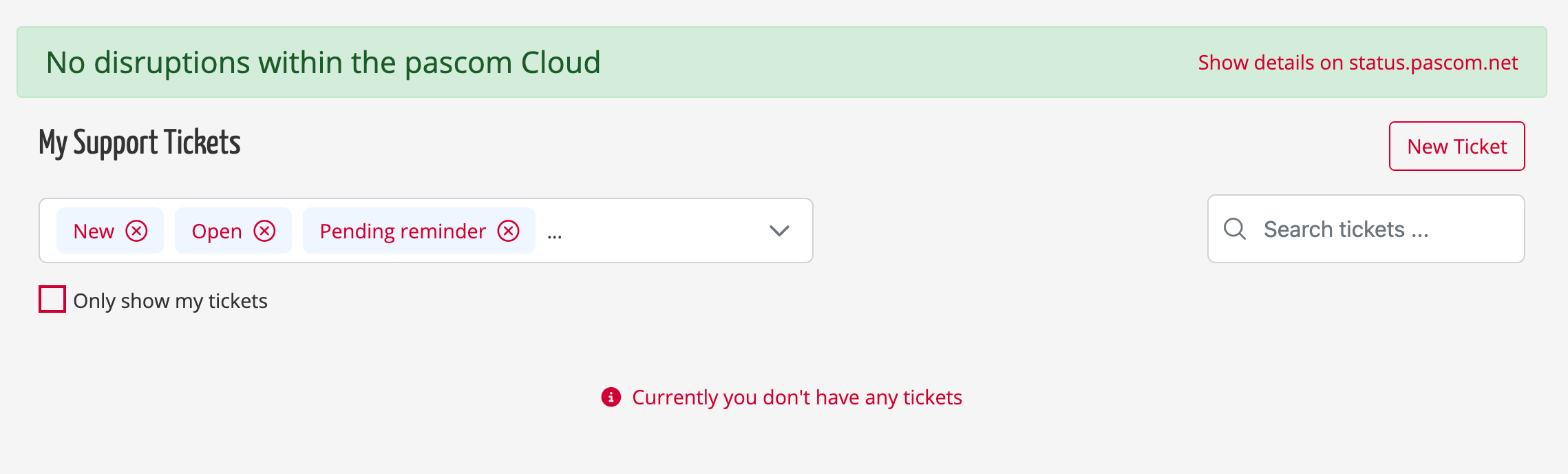
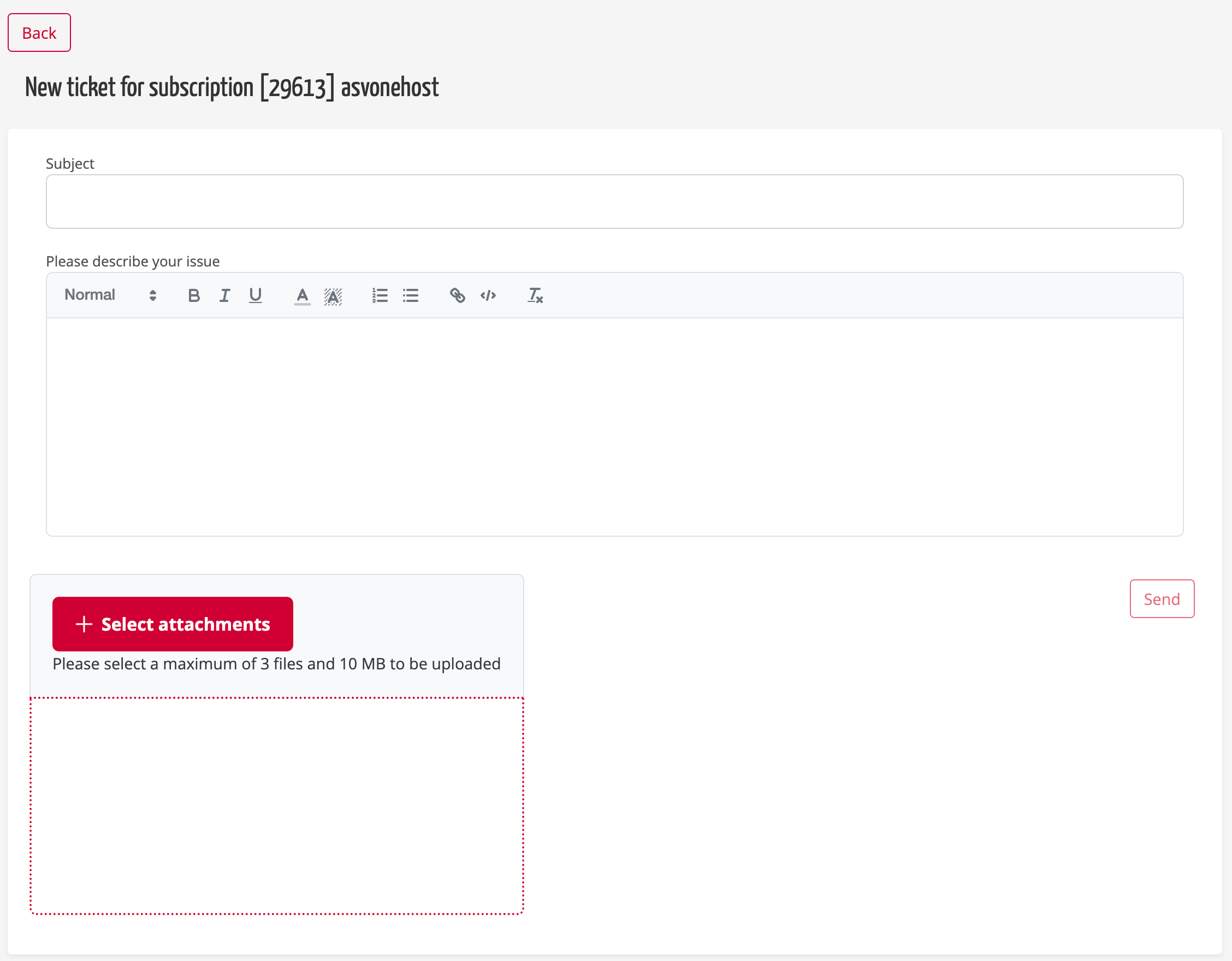
In the myPASCOM portal, click on **Support** in the menu and then on **New ticket**. In the next step, please select the subscription / telephone system for which you require support.
You can now enter a **subject** for the support enquiry and then describe your **issue / problem** in more detail. You can also use screenshots / images in your description to better visualise the problem. You can also attach **files** such as log files, configuration files or images to the ticket.
### Answering and closing support tickets
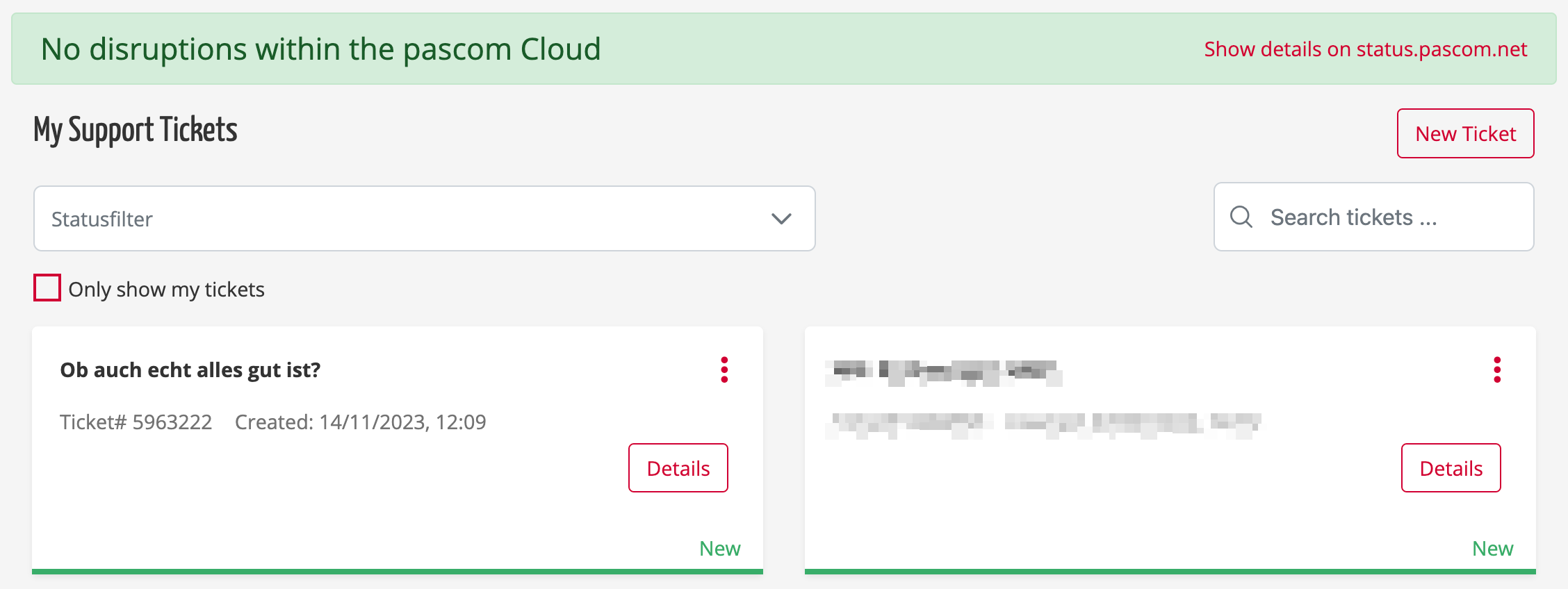
You can find your support tickets in the menu **Support**. You can manage your support tickets from there. As soon as your request is being processed, you can reply to the support team's feedback in the myPASCOM portal or close the ticket if the problem has been solved successfully.
### Consider scope of support
Our support policy clearly defines for what you can get help and support from our support team. In a nutshell - everything concerning the PASCOM telephone system and the PASCOM apps. If you have problems with your company network, IT infrastructure or third-party applications, you will need to contact the respective manufacturer or an IT service provider.
### Responses to support requests take too long
It can take up to several hours for your support ticket to be processed. Depending on the support volume, requests are prioritized accordingly. This is coupled with our **Service Level Agreements (SLA for short)** These are available in different levels and can be upgraded if required. This allows you to influence the response times to your support requests accordingly.
---
# Agent Instructions
This documentation is published with GitBook. GitBook is the documentation platform designed so that both humans and AI agents can read, navigate, and reason over technical content effectively. Learn more at gitbook.com.
## Querying This Documentation
If you need additional information that is not directly available in this page, you can query the documentation dynamically by asking a question.
Perform an HTTP GET request on the following URL with the `ask` and `goal` query parameters:
```
GET https://docs.pascom.net/en/account/mypascom-userguide/pascom-support.md?ask=&goal=
```
`ask` is the immediate question: it should be specific, self-contained, and written in natural language.
`goal` is what the user is ultimately trying to achieve, the reason they need the answer. Sharing it helps GitBook give you a better, more relevant answer. A goal is most helpful when it describes the outcome the user wants rather than restating the question. For example, with `ask=how do I create an API token`, a goal like `build a script that syncs our docs to a CMS` lets GitBook tailor the answer to that use case.
The response will contain a direct answer to the question and relevant excerpts and sources from the documentation.
Use this mechanism when the answer is not explicitly present in the current page, you need clarification or additional context, or you want to retrieve related documentation sections.